

Price-Based Shipping (Cart Total)
Cart Total Shipping in WooCommerce bases the shipping fee on the final cart value, factoring in discounts, additional fees, and taxes if enabled.
For example, if a customer’s order totals $95 before tax but becomes $102 after taxes and a small handling fee, the shipping rule will be applicable. Therefore, free shipping is offered for a total of over $100. In this case, the customer qualifies.
It’s useful for applying precise incentives based on what the customer actually pays at checkout.
Setting Up Price-based ( Total Fee ) in Shipping Manager
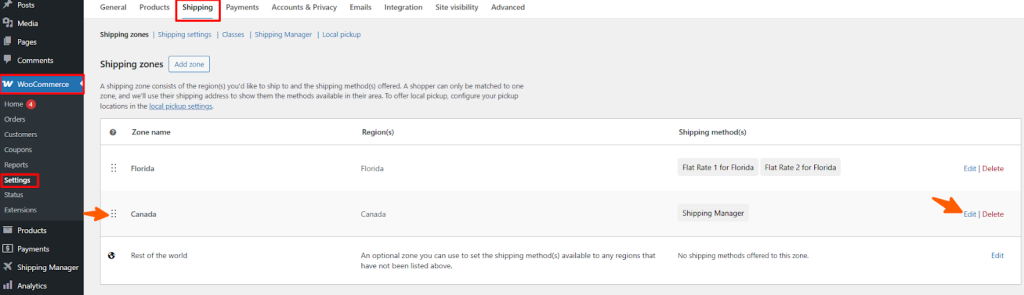
First, navigate to WooCommerce > Settings and then click Shipping. Now, you can see that two zones have been created already. Click Edit to customize the shipping rules of that zone and apply a shipping based on the Total price.
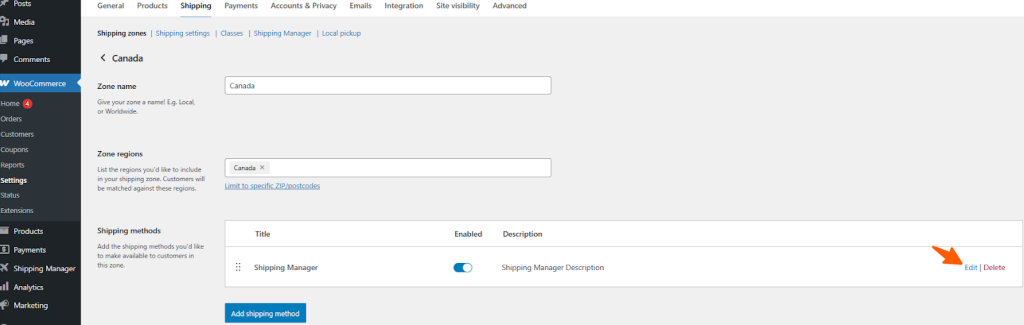
In the next section, you will see the available shipping methods. You can also create a new shipping method by clicking the Add Shipping Method button. Now, click the Edit button to add or customize the shipping rules.
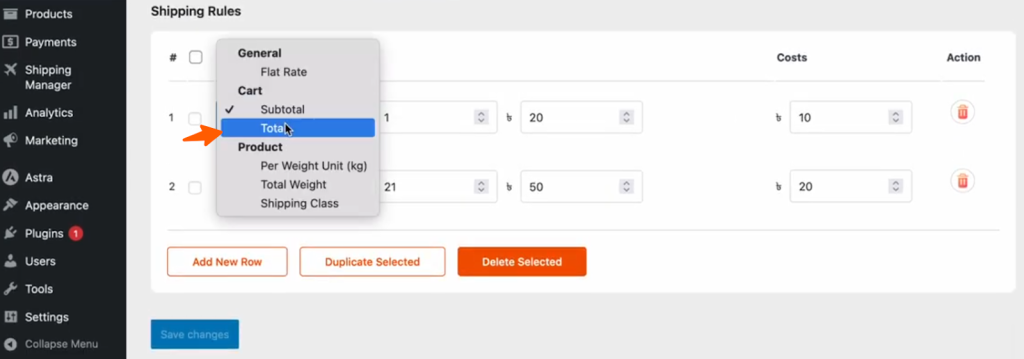
Now, you can view the available shipping rules in the list and select Total from the list.
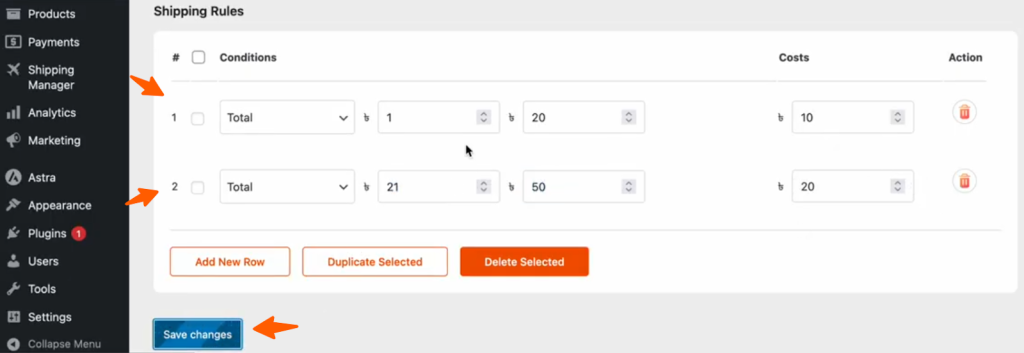
After selecting Total, set the price range for the subtotal. We’ve set the first Total between $1 – $20, and the shipping cost as $10. The second Total is between $21-$50, and the shipping cost is $20. Then click Save Changes to apply the changes.
Now, go to the shop page and select a product from the shop. We’ve added a product to the cart and then clicked View Cart.

If you look at the shipping fee it meets the condition that we’ve set in the shipping rules. Shipping fees was set to $20 for the total price range of $21-$50.
Therefore, the total price excluding the delivery charge here is $30. Therefore, the shipping fees is $20 according to the shipping rules.
