
Subtotal Based Shipping
Cart Subtotal Shipping in WooCommerce adjusts shipping fees based on the amount spent before taxes and discounts.
For instance, you might set free shipping for orders over $100 and a $5 fee for carts under that amount. If a customer’s subtotal is $85, they pay the $5; if it’s $120, shipping is free.
It’s a smart way to reward larger purchases and encourage upselling.
Setting Up Subtotal Fee in Shipping Manager
First, navigate to WooCommerce > Settings and then click Shipping. Now, you can see that two zones have been created already. Click Edit to customize the shipping rules of that zone and apply a Subtotal shipping fee.
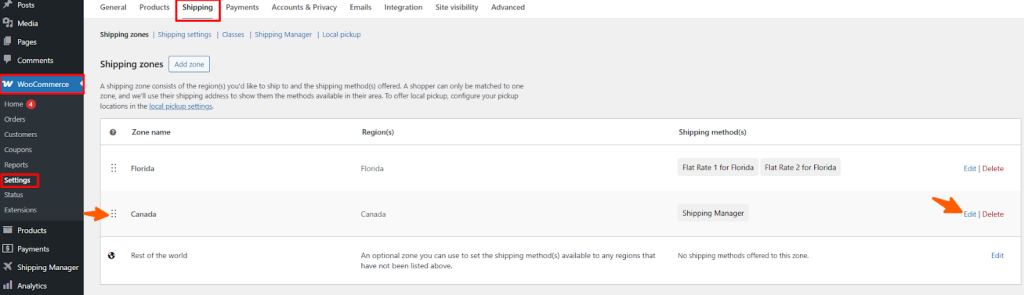
In the next section, you will see the available shipping methods. You can also create a new shipping method by clicking the Add Shipping Method button. Now, click the Edit button to add or customize the shipping rules.
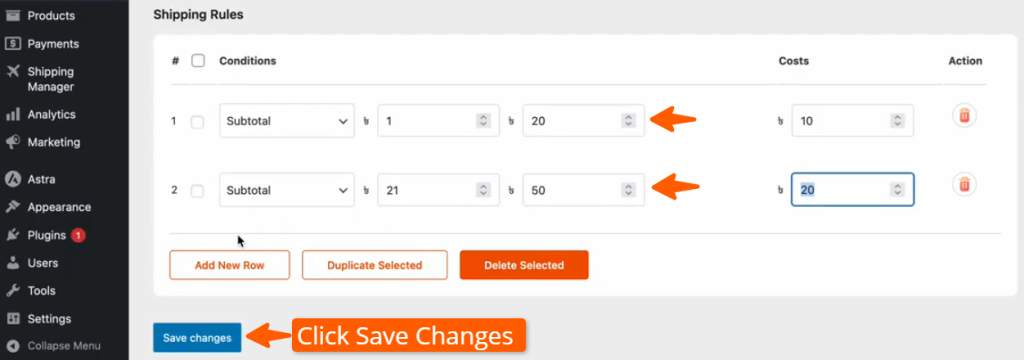
Now, you can view the available shipping rules in the list and select Subtotal from the list.
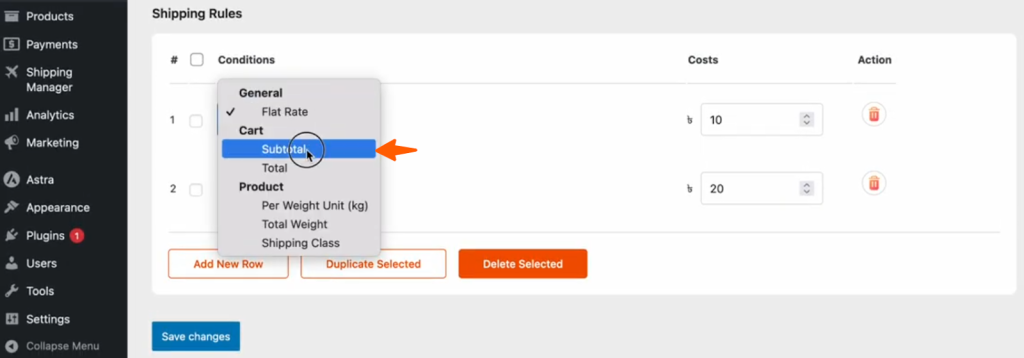
After selecting Subtotal, set the price range for the subtotal. We’ve set the first subtotal between $1 – $20, and the shipping cost as $10. The second subtotal is between $21-$50, and the shipping cost is $20. Then click Save Changes to apply the changes.
Now, go to the shop page and select a product from the shop. We’ve added a product to the cart and then clicked View Cart.

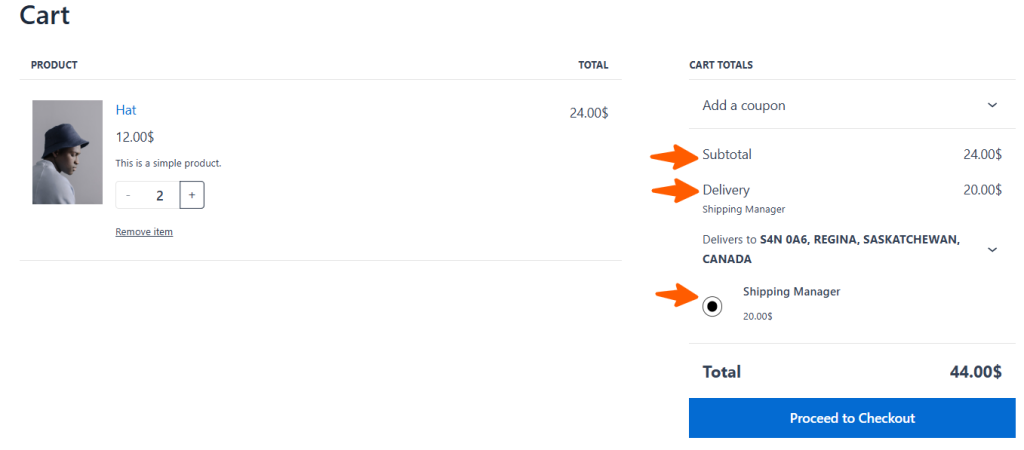
At the moment, there is one product in the cart, and the subtotal value is $12, which is within the $1-$20 subtotal range. So the shipping cost is now $10, which is added to the total cost of $22.
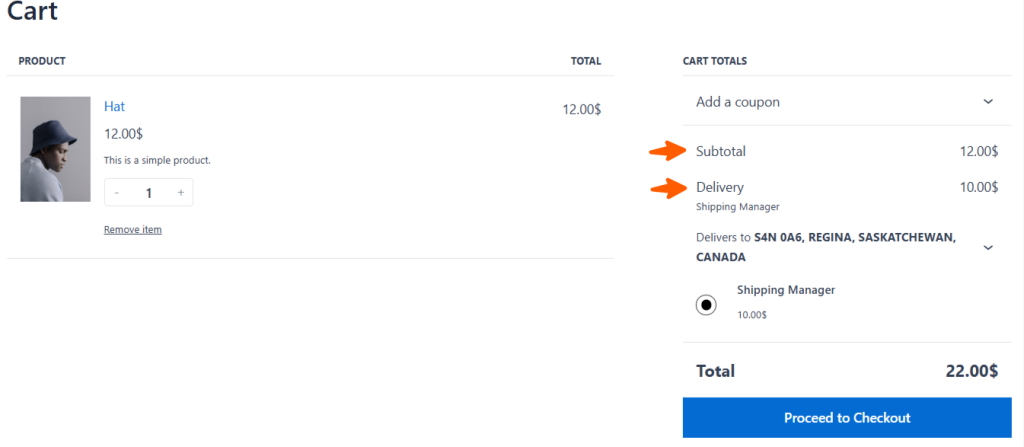
Now, if you add one more hat to the cart, the subtotal becomes $24, which falls under the $21-$50 subtotal range. Thus, the shipping fee is now converted to $20, which is set by the shipping rules and added to the total cost of $44.