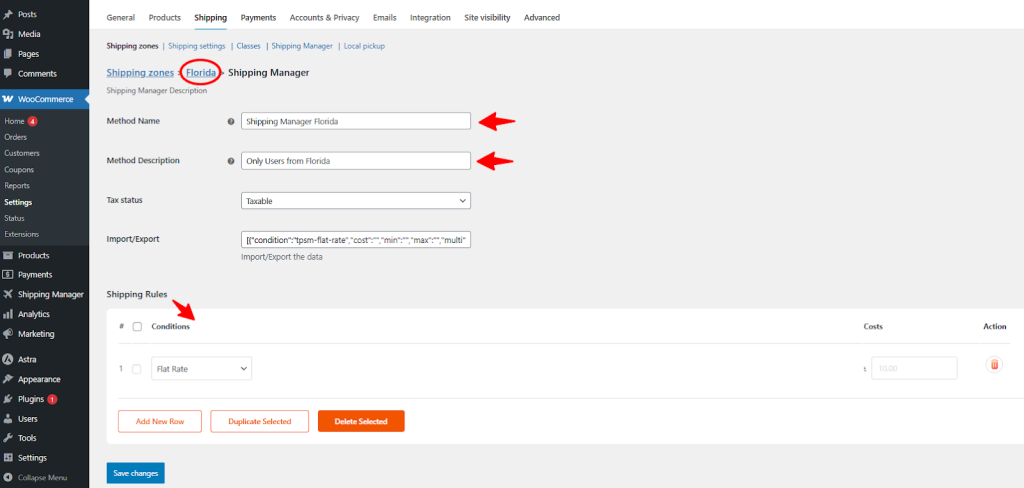

Setting Up a Zone With Shipping Manager
Zone Specific Shipping
Zone-specific shipping in WooCommerce lets you set different shipping rates and methods based on customer locations. You create shipping zones, like a country, state, or postcode range, and assign shipping methods (like flat rate, free shipping, or local pickup) to each zone.
This feature is especially useful for online stores with customers in different regions. For instance, someone in New York might have the option for local pickup, while a customer in California sees a specific flat-rate charge.
Similarly, a shopper in London could be offered same-day courier service, while someone in Manchester might be assigned standard Royal Mail shipping—each tailored to their location.
Shipping Manager Zone Settings
Go to WooCommerce > Settings and click Shipping from the menu option below Settings.
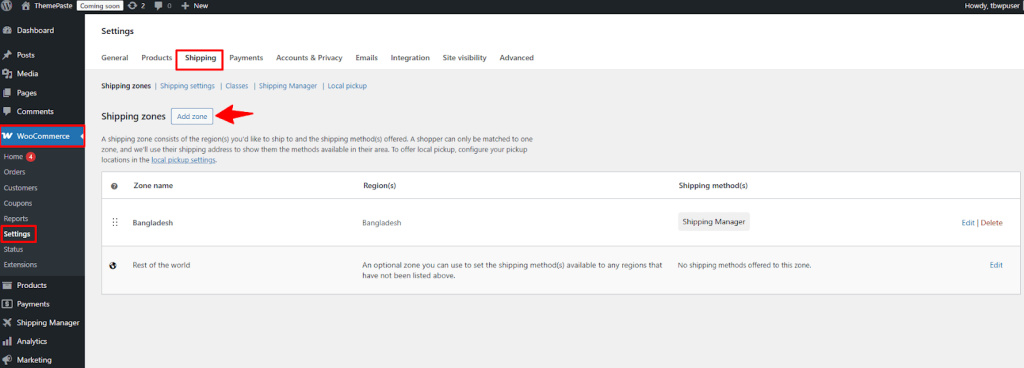
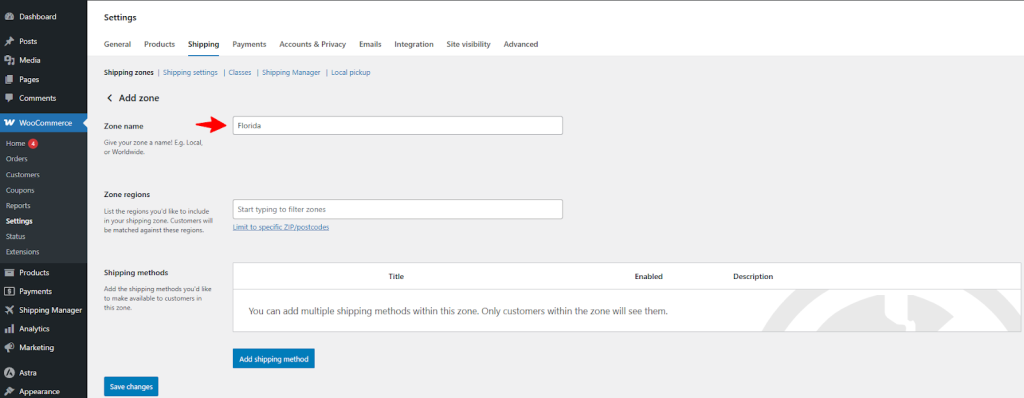
Now click on Add Zone and provide the Zone Name. We’ve set the zone name as Florida since we are setting up shipping fees for Florida.
Then, select the Zone regions menu and type your zone region in the box, and click beside the zone region.
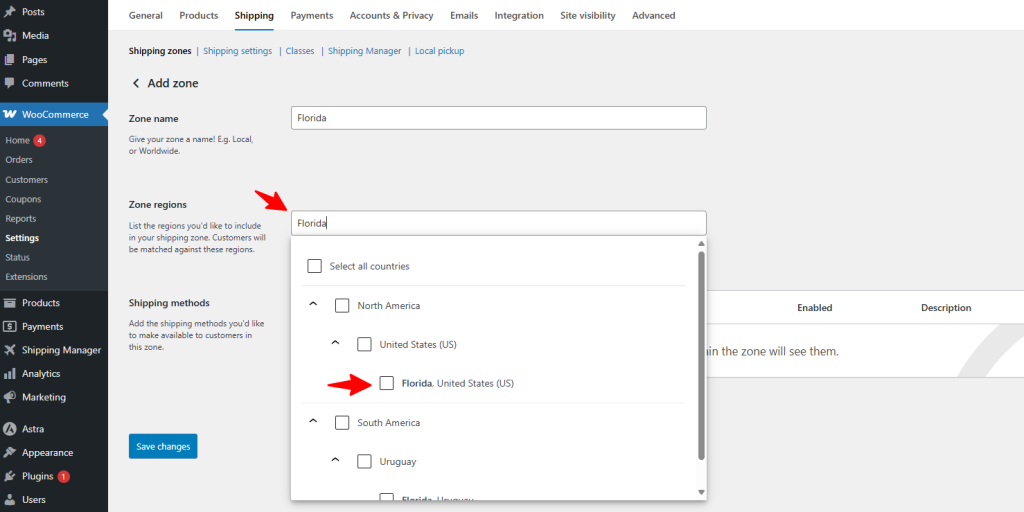
Now click Save Settings to save the changes you’ve just made.
Then click Add Shipping method to view all the available shipping method at your WooCommerce store.
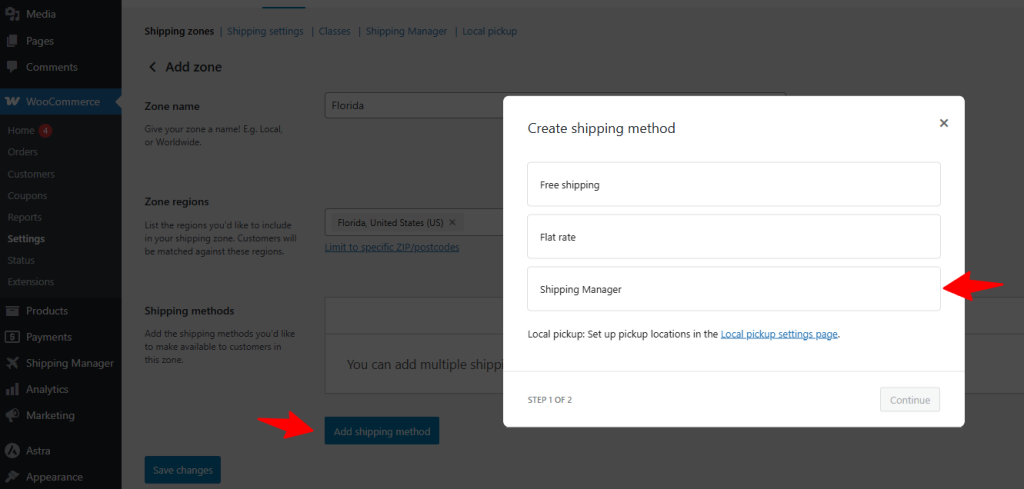
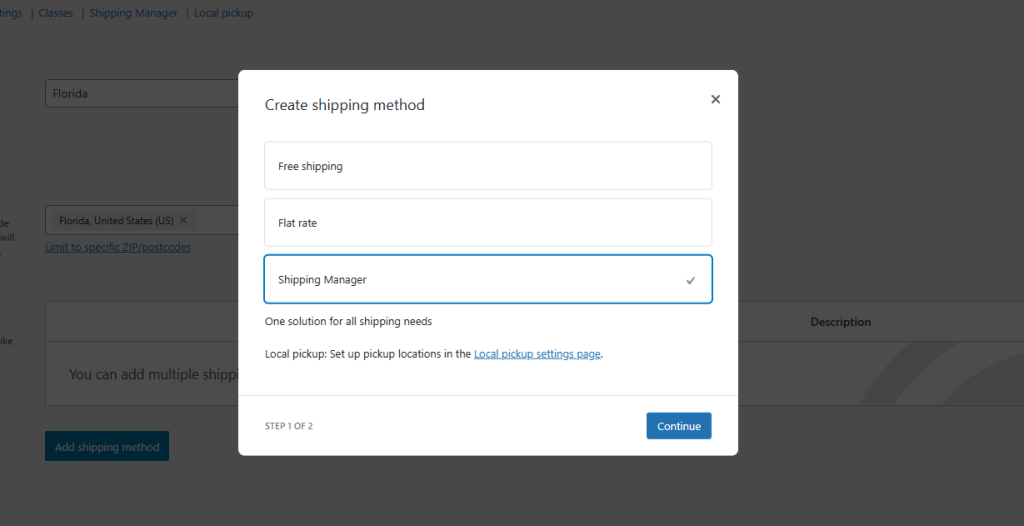
Click Continue after selecting Shipping Manager from the list.
Now, you can see the Shipping Manager is available in the Shipping Method. Click on Edit to view
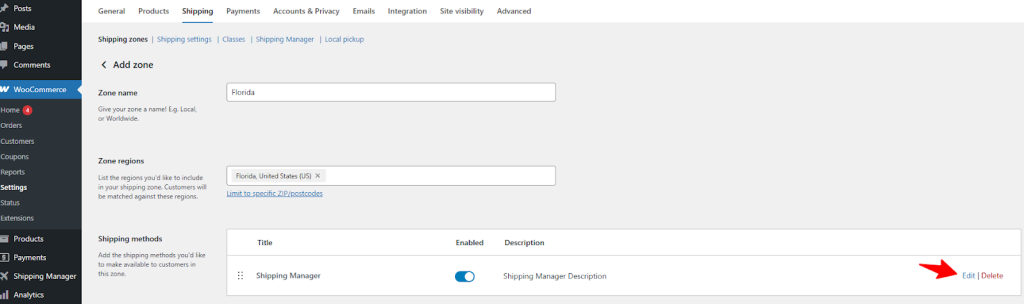
Now you can see Zone-specific shipping methods, which are only applicable for the Florida region.
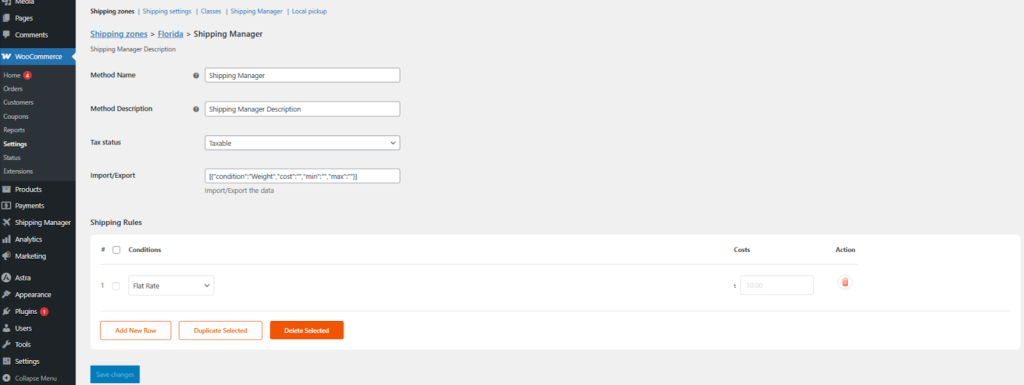
Now you can change the Method Name, Method Description, and Tax Status from this page.
Also, you can set different shipping rules and conditions for your WooCommerce store. Shipping methods set from this page only apply to someone who will check out from Florida.