
Google Login [ Pro ]
The Google Login feature enables users to sign into your WordPress site using their Google account credentials. It offers a fast, secure, and familiar authentication experience. Leveraging OAuth integration simplifies access while maintaining strong identity verification.
It’s particularly helpful for:
- Accelerating user registration and login with one-click access
- Reducing password fatigue and forgotten login issues
- Enhancing trust by using a widely recognized and secure login method
- Improving mobile usability and conversion rates
- Streamlining onboarding for teams, students, or subscribers already using Google Workspace
This feature is ideal for educational platforms, SaaS dashboards, membership sites, and any WordPress environment. It integrates seamlessly with your existing login flow to boost engagement without compromising security or branding.
Note: Activate the pro plugin to enable this feature.
Here is how you can use this feature:
Enable The Google Login
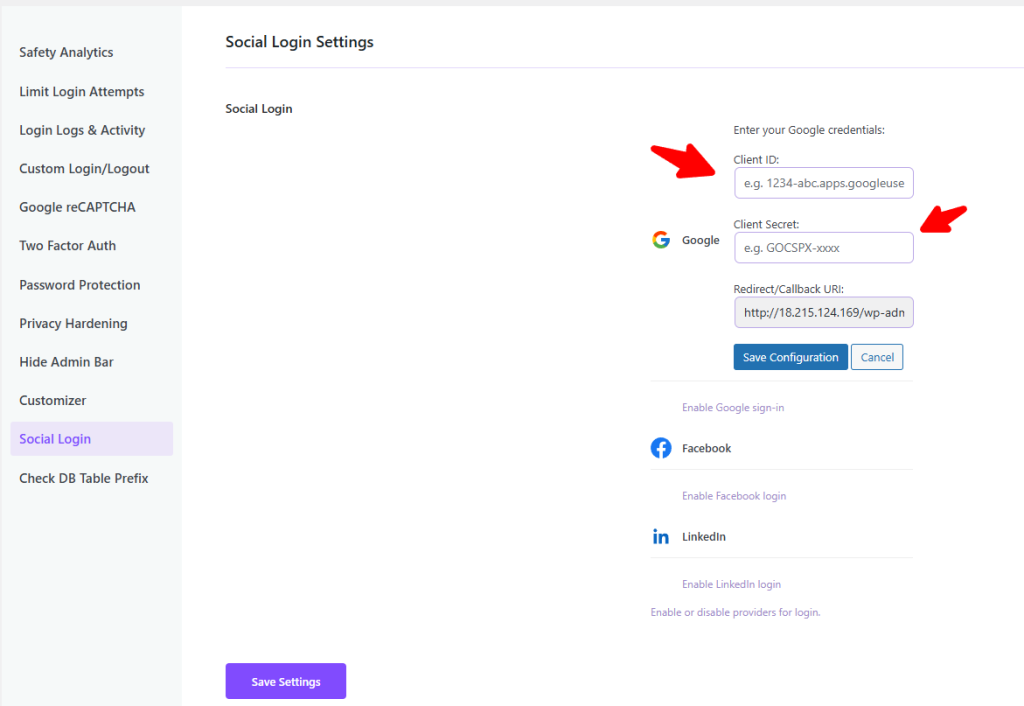
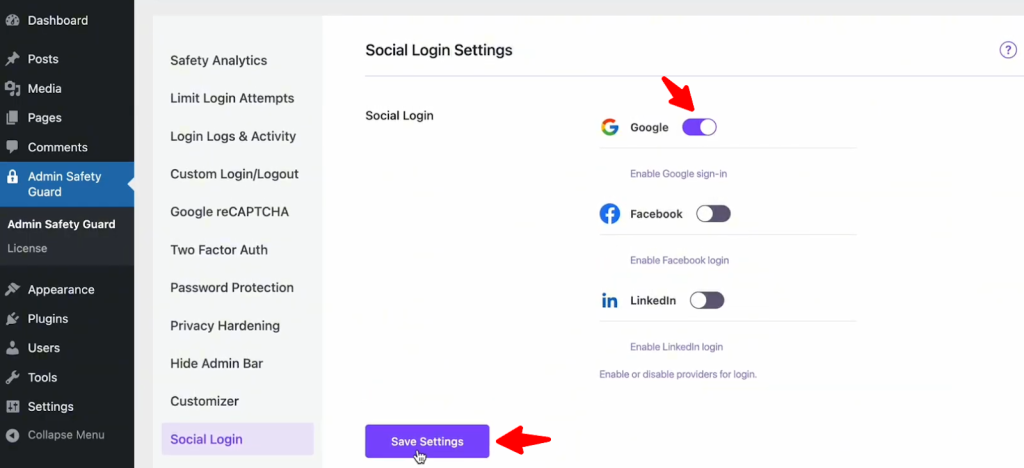
- Go to Admin Safety Guard > Social login and click the button beside Google.
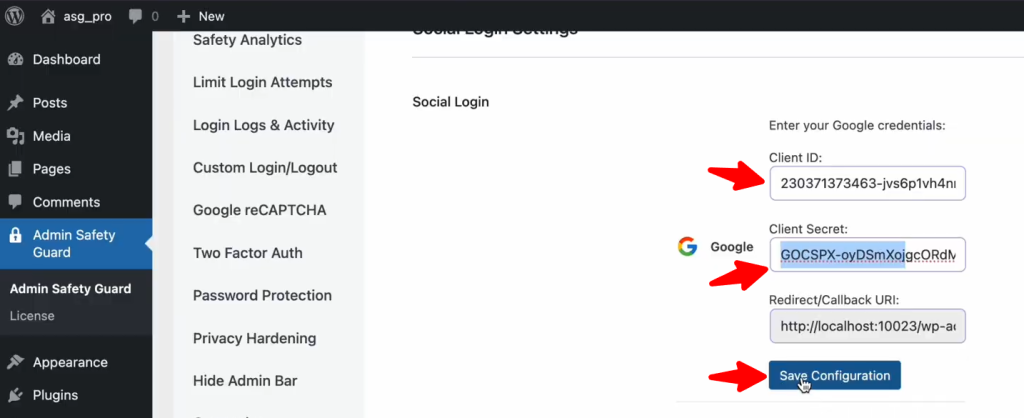
- To make the Google Login feature functional, you must provide the Client ID and Client Secret. Then you need to save the configuration.
Collect Client Info from Cloud Console
- Now, go to Google Cloud Console to collect the required information (Client ID, Client Secret)
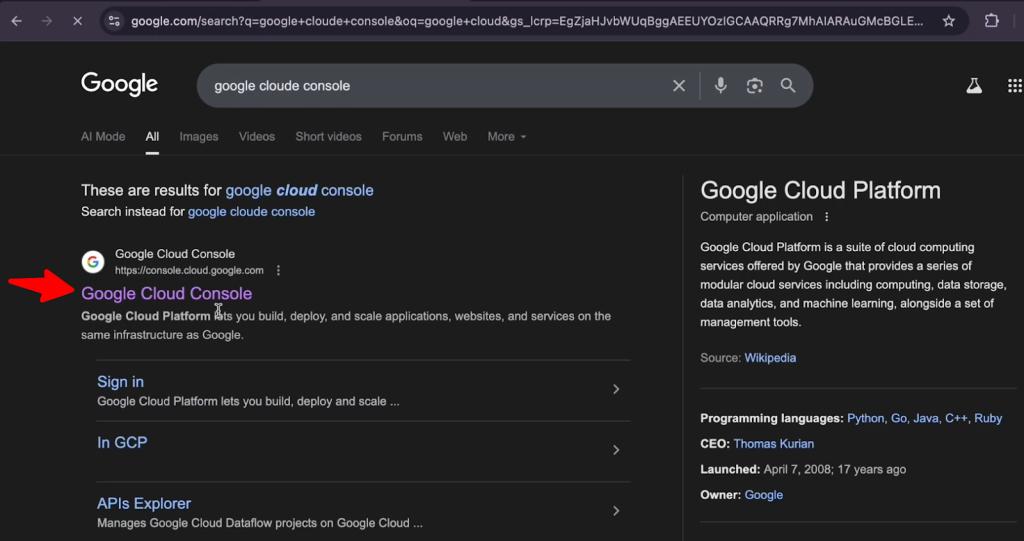
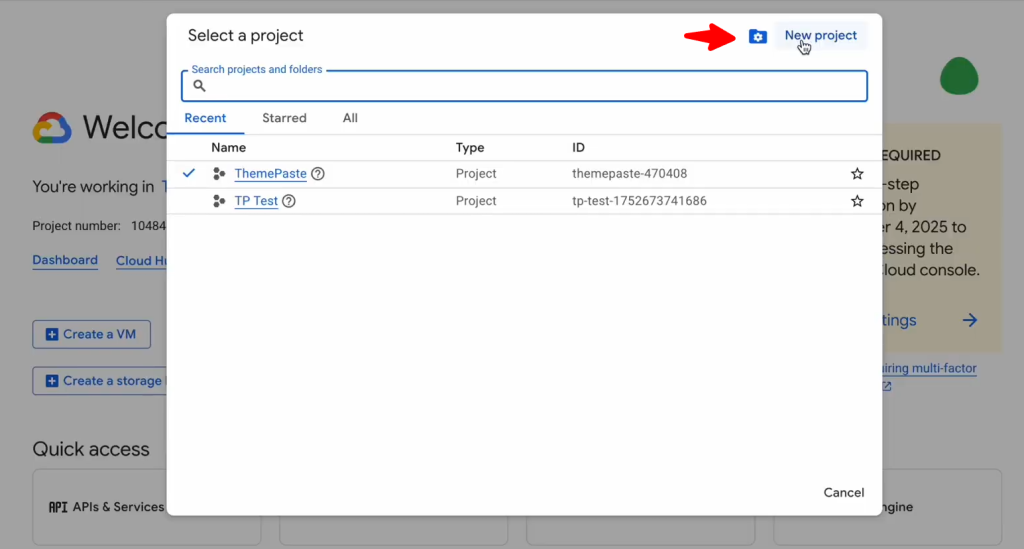
- Then log in to your Google Cloud Console account and click the button beside the Google Cloud logo.
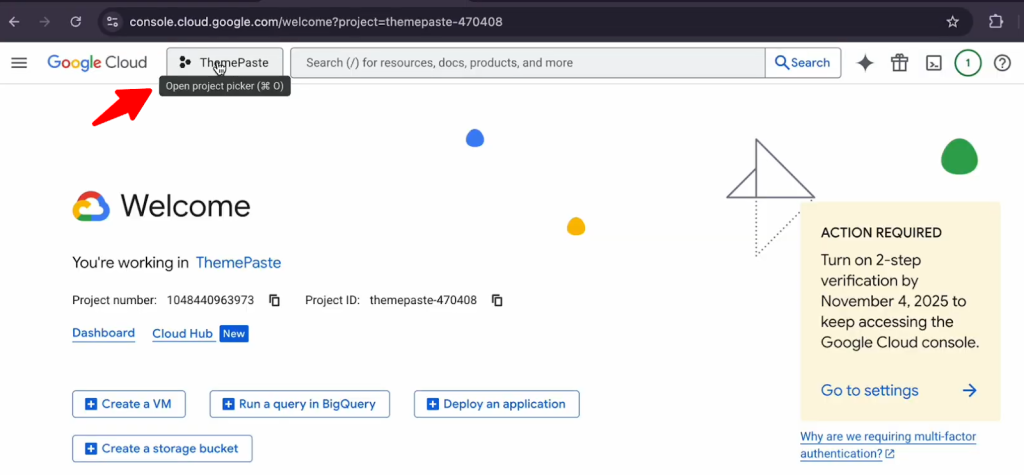
- Now, click on the New Project button.
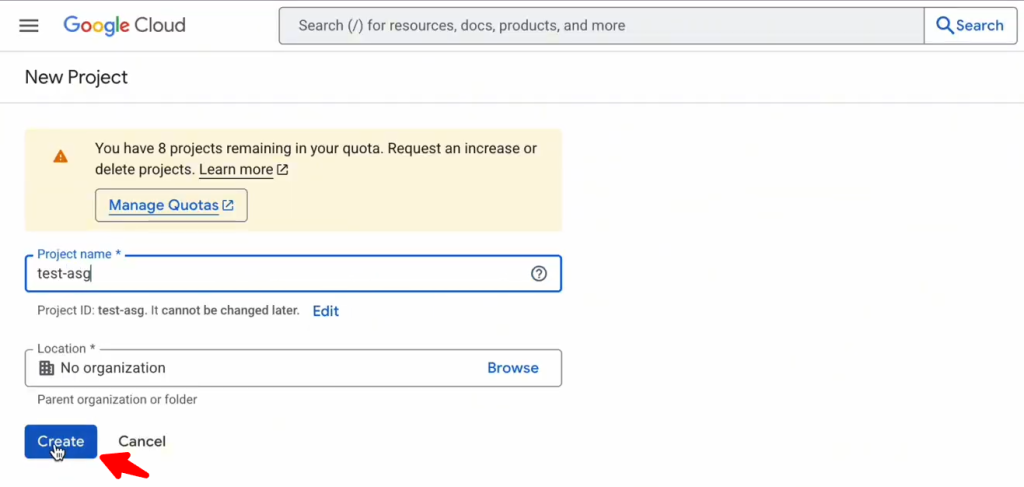
- Provide your preferred Project name and click the Create button.
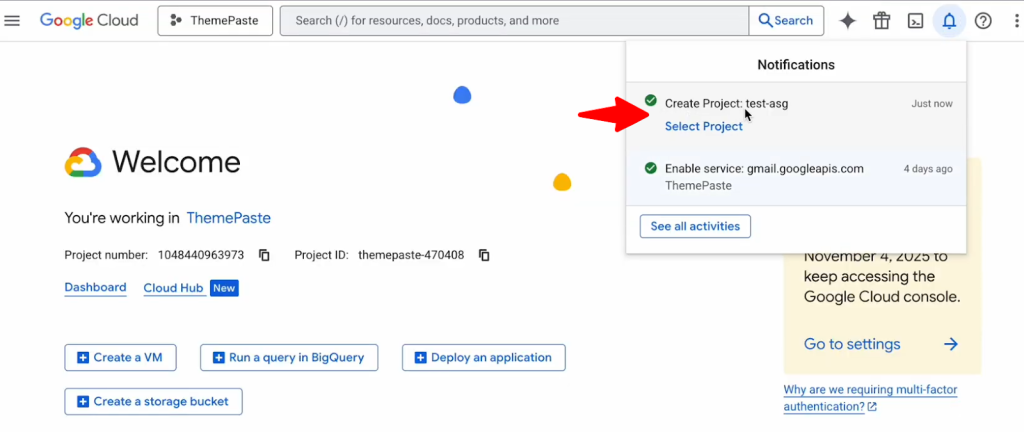
- As you can see, the project is ready and shown.
- Click on Select Project.
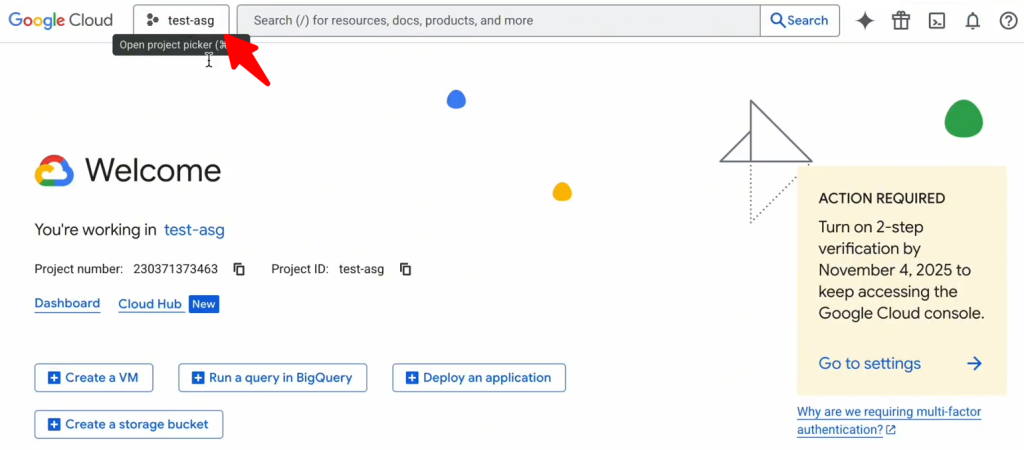
- Now, you can see the Project that you’ve created beside the Google Cloud logo.
- Click the navigation menu located in the top left corner.
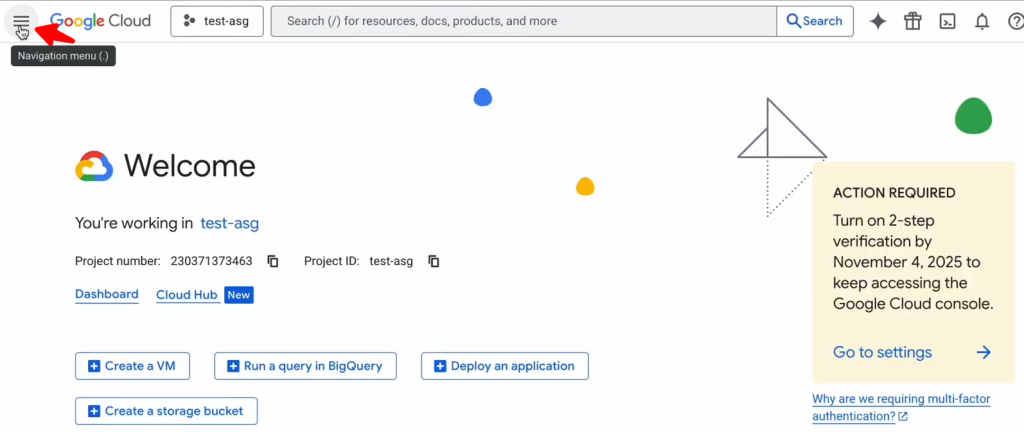
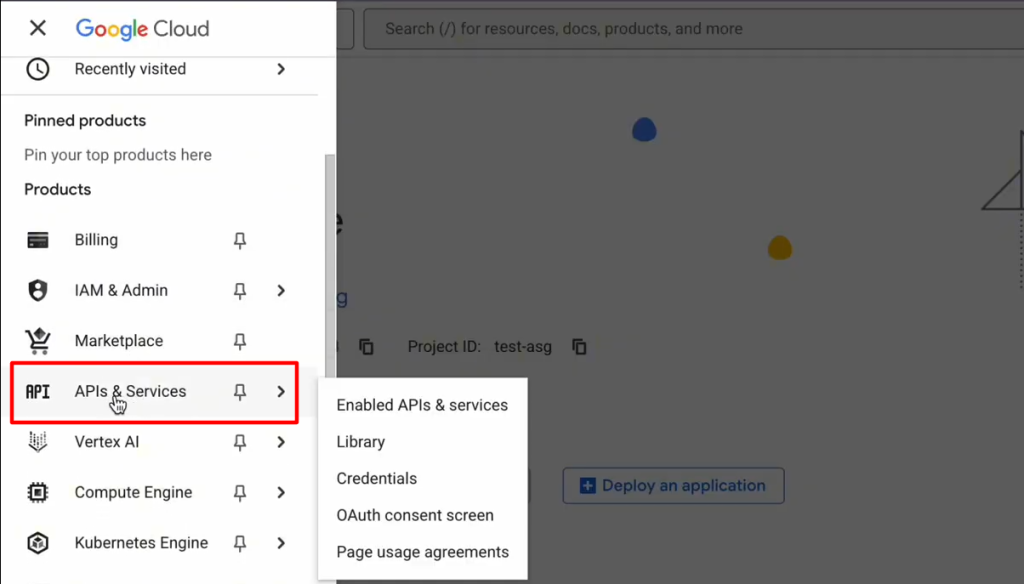
- Scroll down a bit and click the API & Services option.
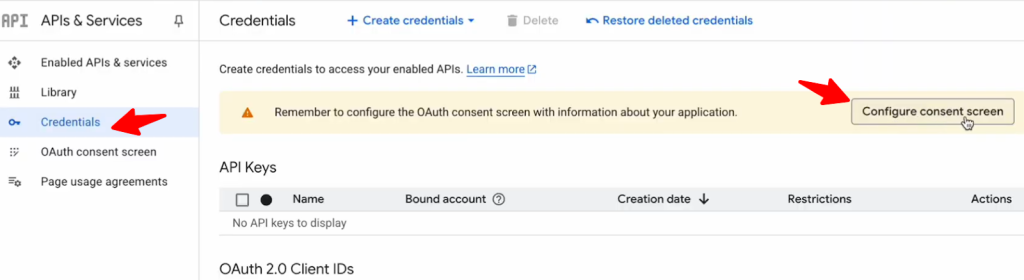
- Now, on the APIs & Services page, click on Credentials and then click on Configure consent screen.
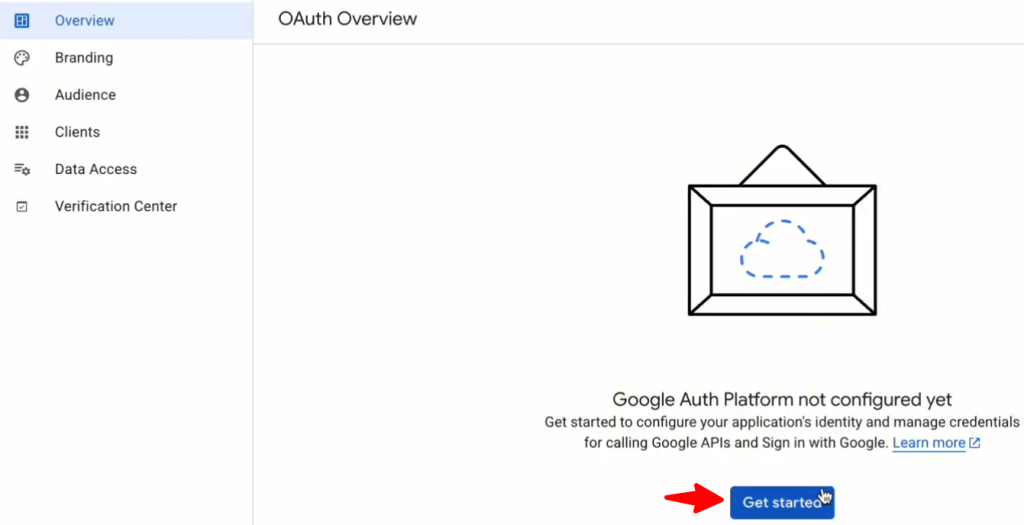
- On the next screen, click the Get Started button.
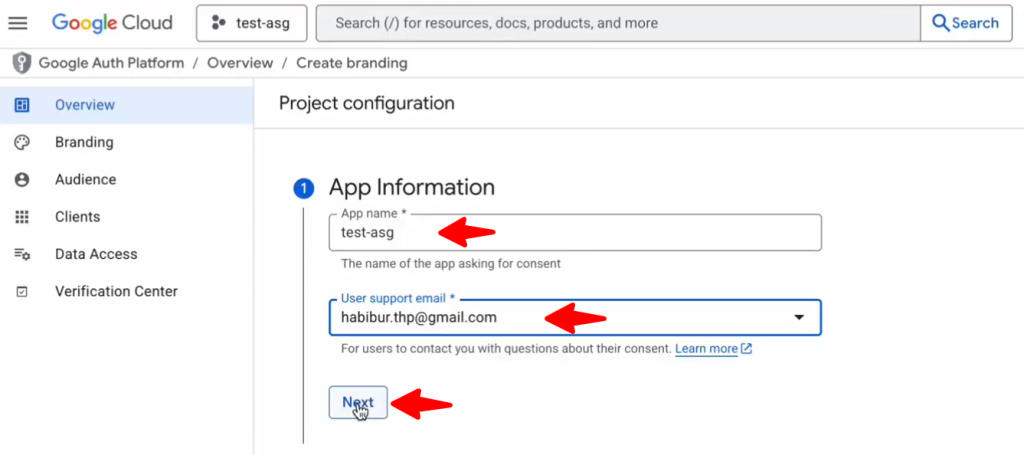
- Then provide the App name, the User support email, and click Next
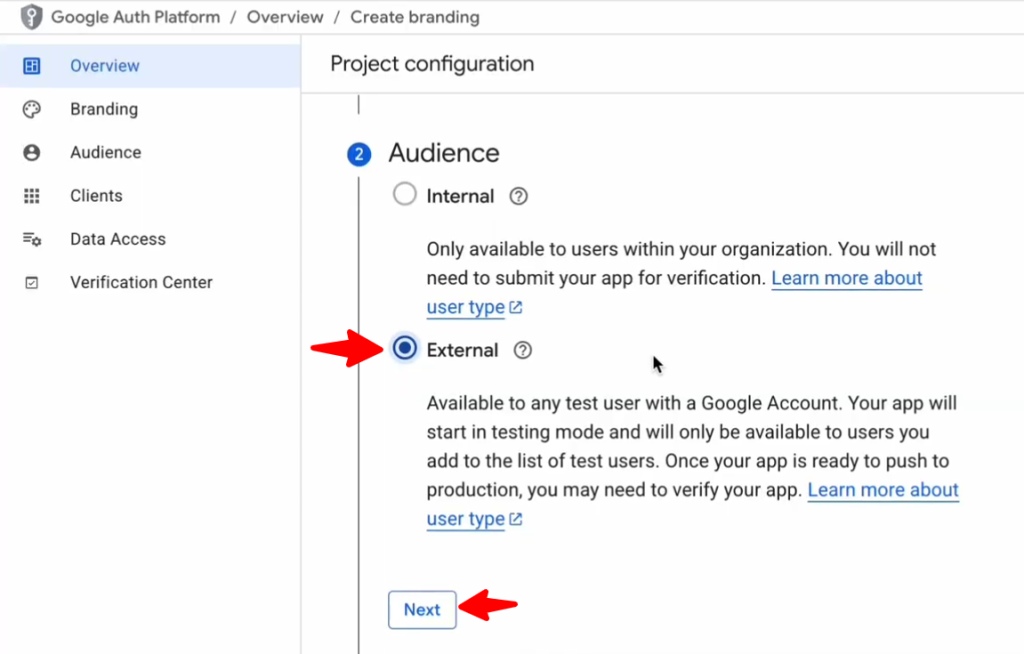
- Select External and then click Next.
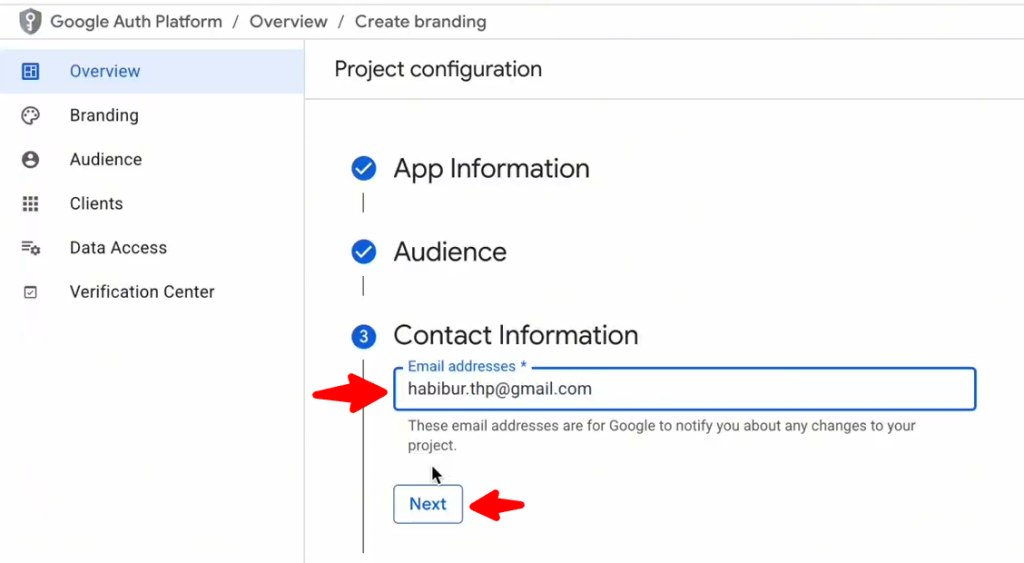
- Next, provide your contact email and click the Next button.
- Then put a tick mark on I agree to the Google API Services and then click Continue.
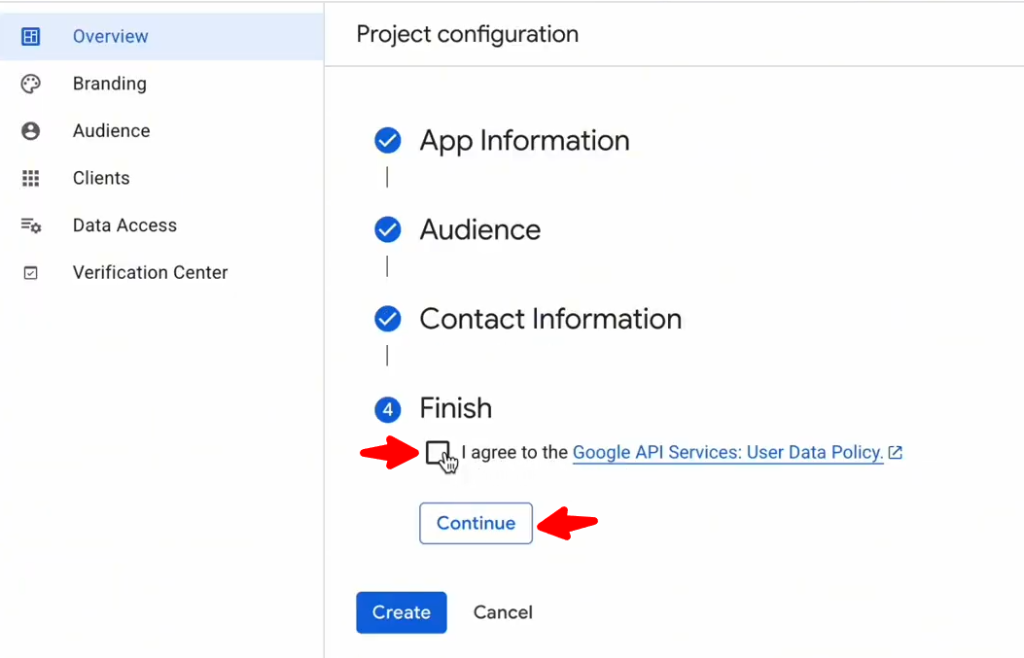
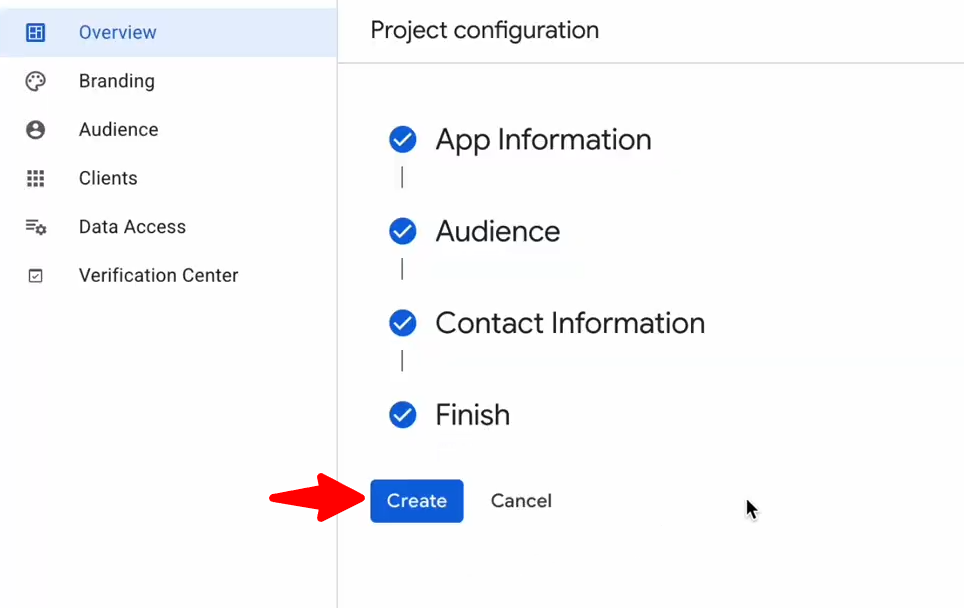
- Lastly, click Create to finish up project configuration.
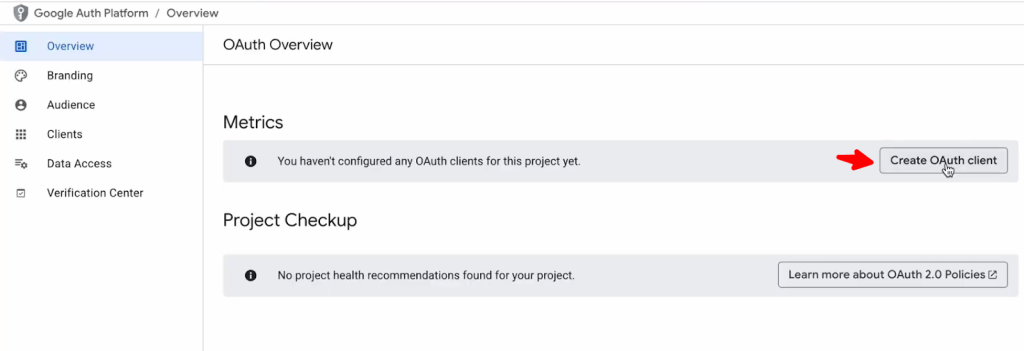
- Now, click on Create OAuth client.
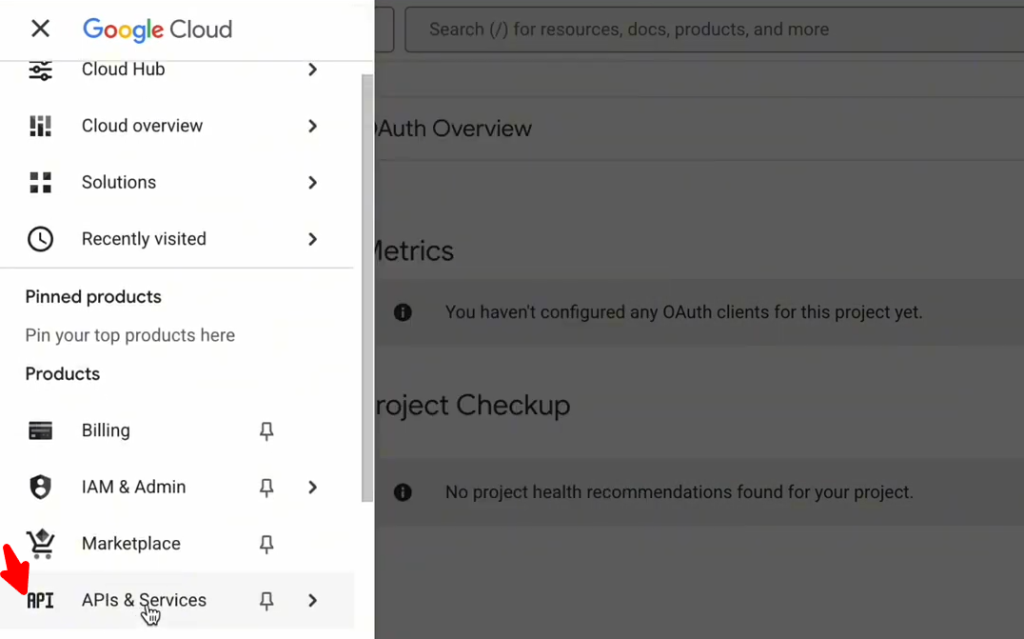
- Or you can go to top left corner menu and click API & Services.
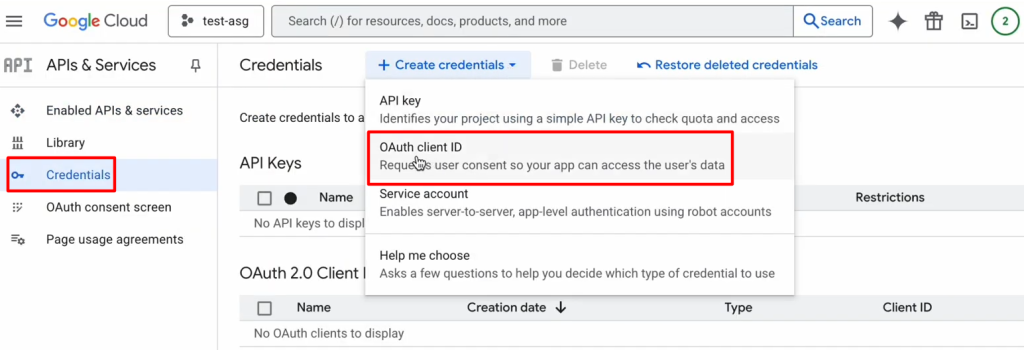
- Then click Credentials and then click OAuth Client ID
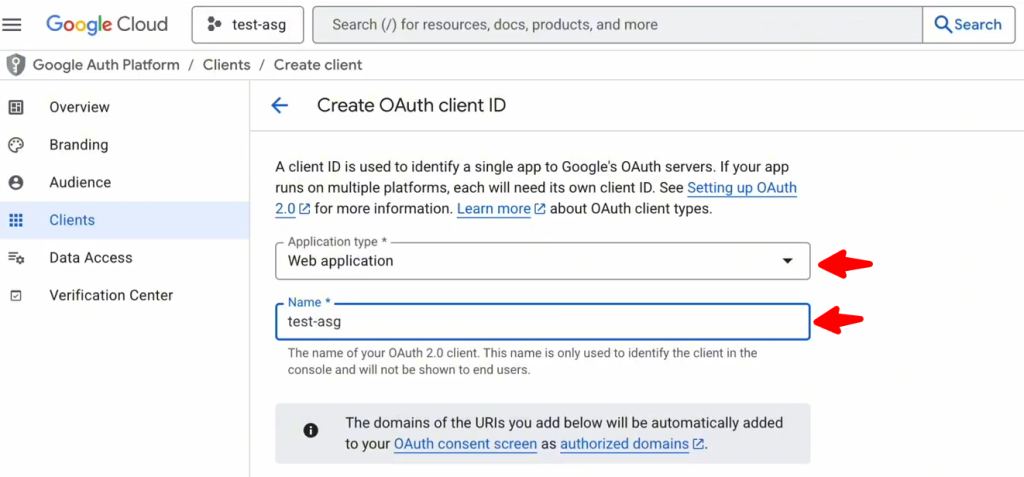
- Select Application Type as Web Application and provide a preferred name.
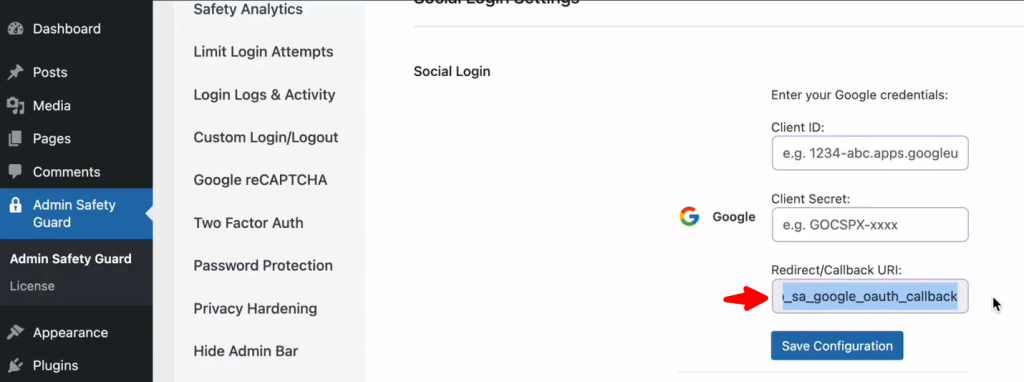
- Now go back to Admin Safety Guard on your WordPress site and copy the Redirect/ Callback URI from the plugin.
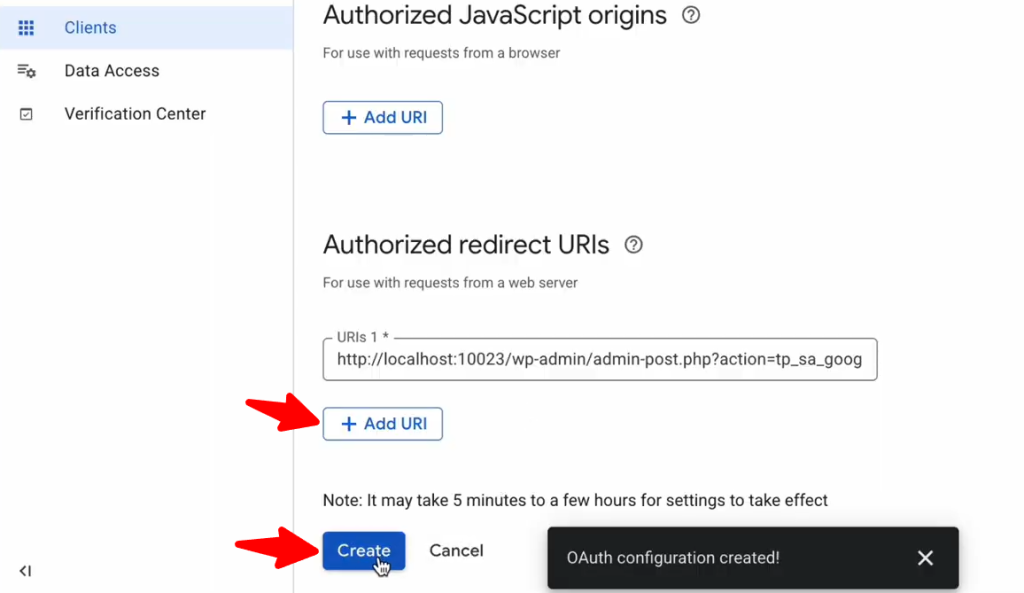
- Then go back to Google Cloud Console and Paste the URI by clicking Add URI button. Then click Create button.
- You can now copy the Client ID and Client Secret.
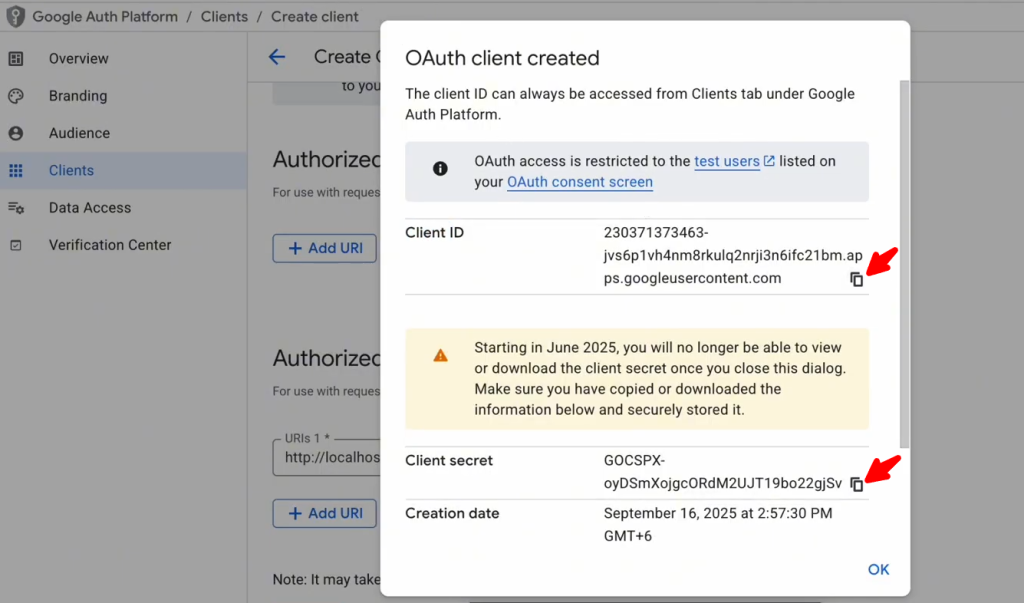
- Then paste these informaitno into Client ID and Client Secret. Then click the Save Configuration button.
- Since the configuration is saved, you can click the Save Settings button.
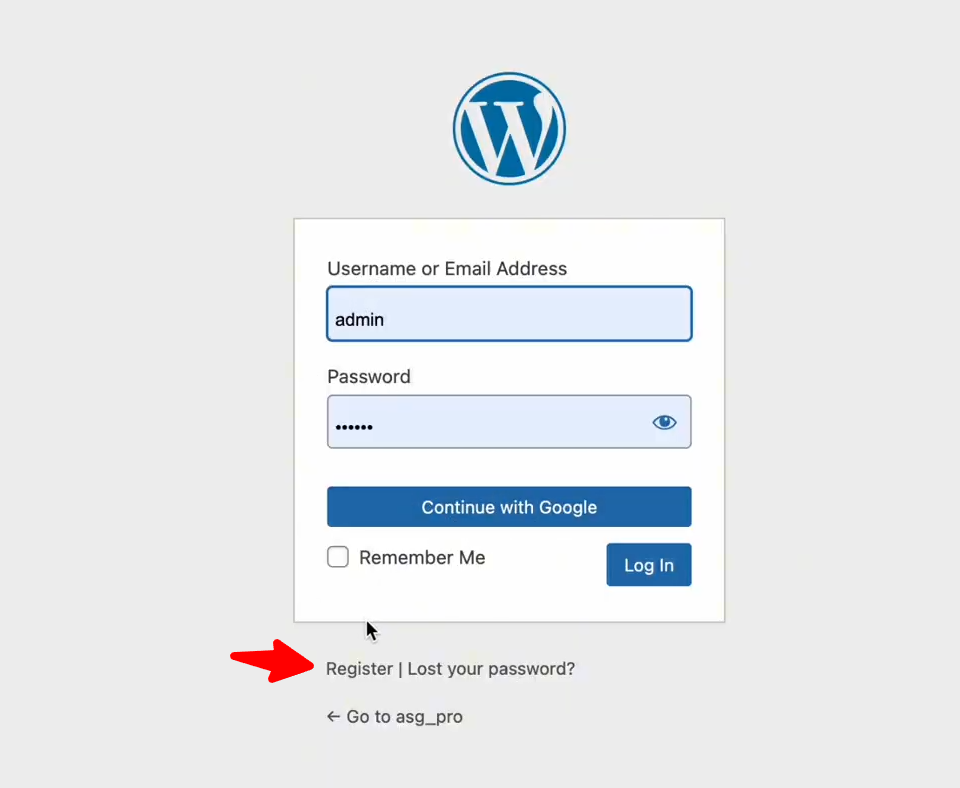
- Now log out from your site and go to the login page of your website. As you can see the Google Login options is now available in your site.
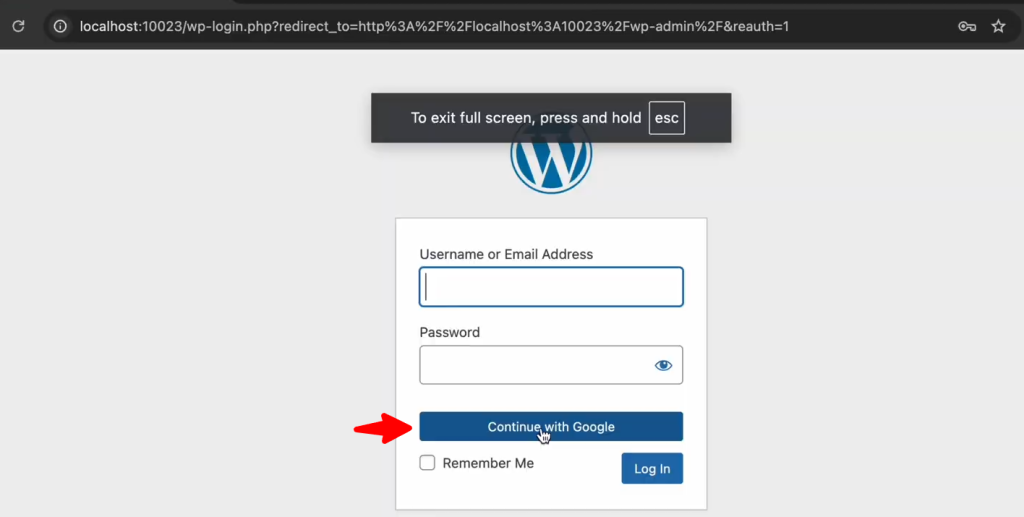
- By clocking Continue with Google you can provide your email address and password to login to your site.
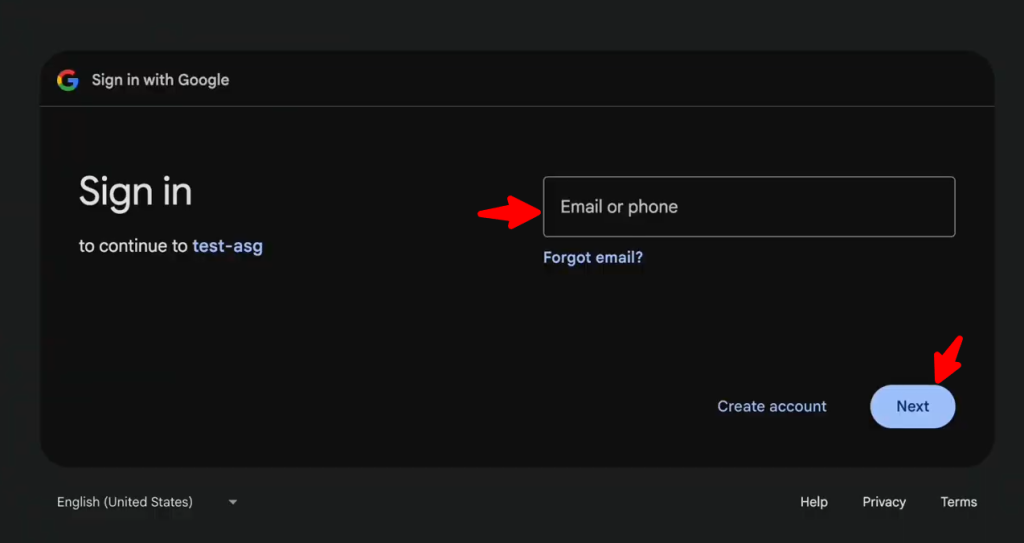
- After logging in using your credentials, your profile will show your email address next time you try to login. Your app name (test-asg) is also available here.
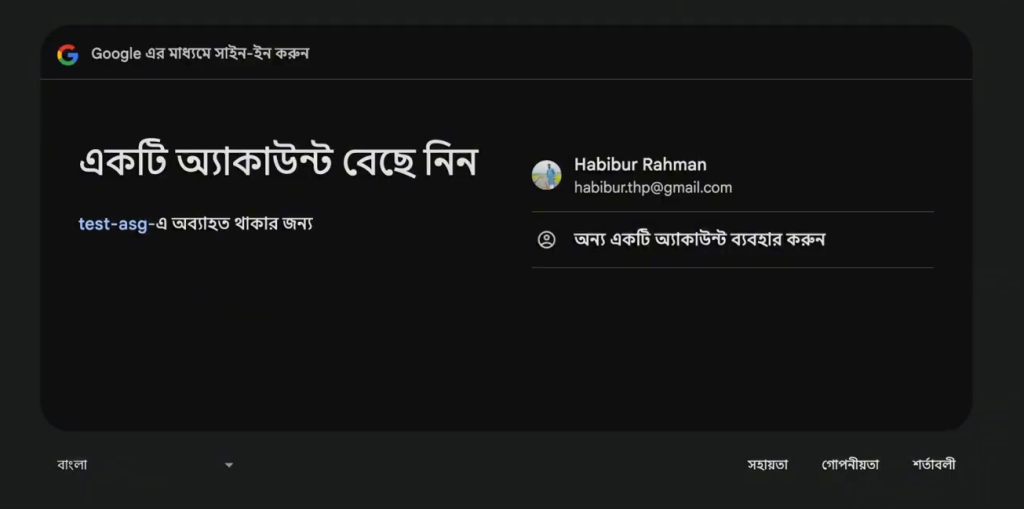
- Now select your email address and click continue.
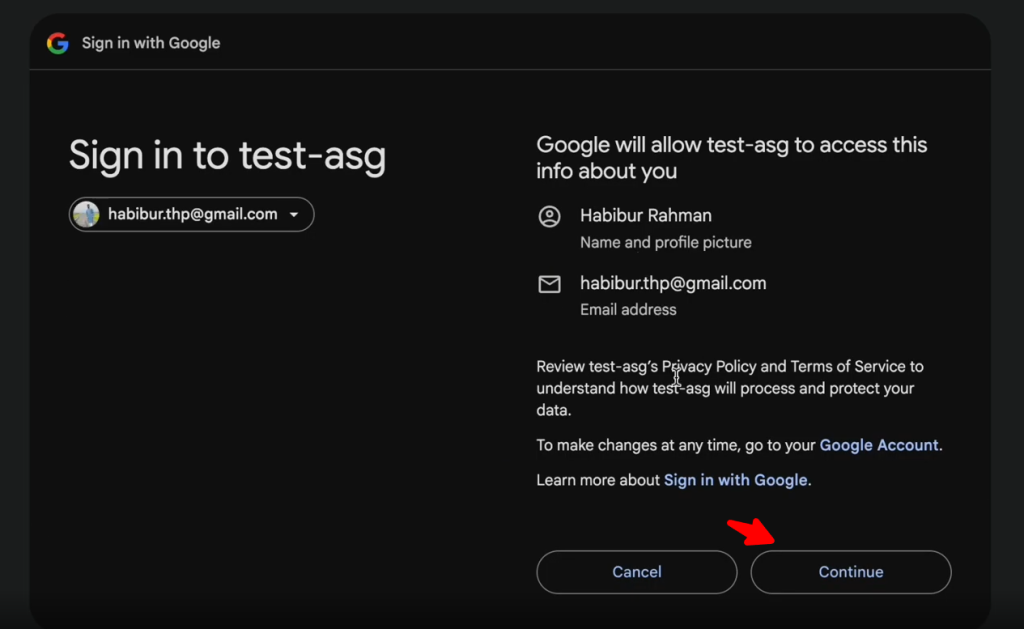
- As you can see we’ve successfully logged into your website using yoru Google account.
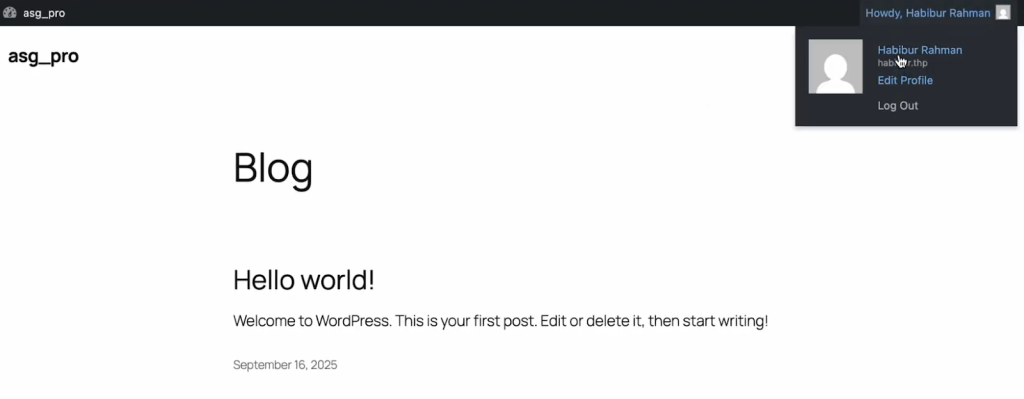
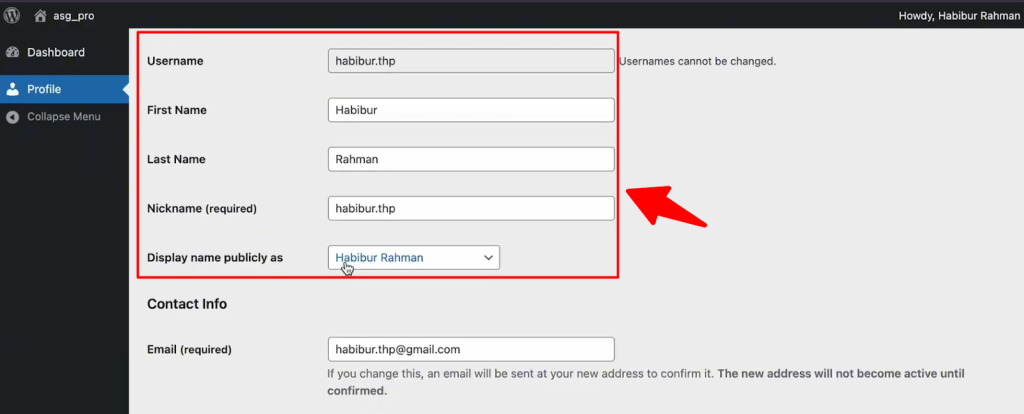
- Go to your profile from Top right corner. The WordPress has collected necessary information from your Google account.
- Go to Settings > General, scroll down a bit, and tick mark on Membership. This allows users to register to your site using their Google email address.
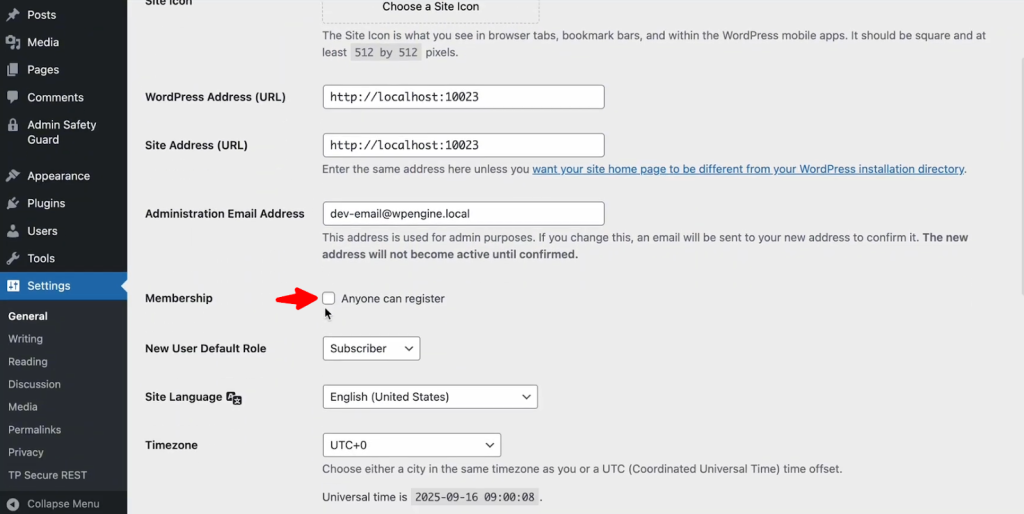
- Dont forget to scroll down and click the Save Changes button.
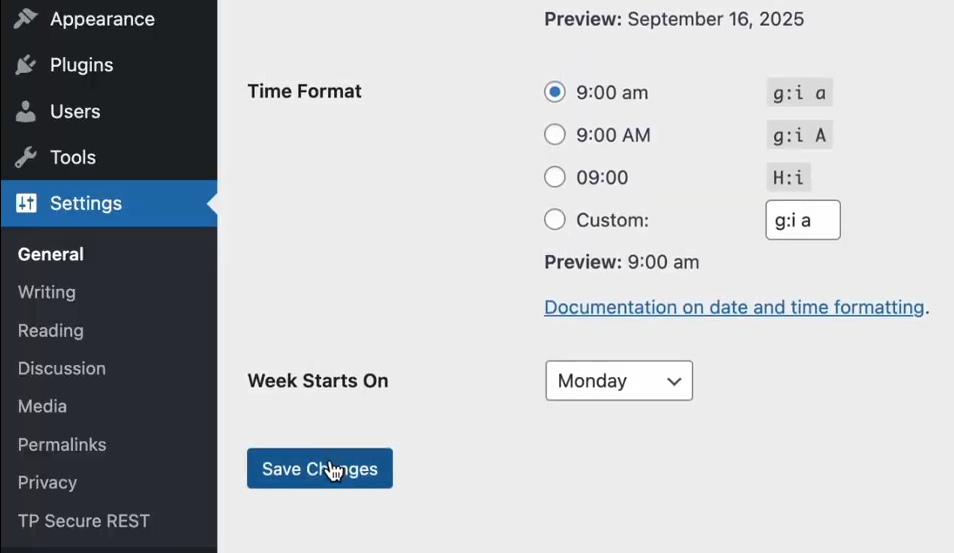
- Logout from your website and try to login again. As you can see the Register option is now available in your login page.