
Facebook Login [ Pro ]
The Facebook Login feature allows users to access your WordPress site using their Facebook credentials. It simplifies authentication while enhancing user convenience. By integrating with the world’s most popular social platform, this feature reduces login friction and encourages faster engagement.
It’s particularly helpful for:
- Simplifying registration and login for social-savvy audiences
- Increasing conversion rates on membership, eCommerce, or community sites
- Reducing password fatigue and forgotten credential issues
- Speeding up onboarding for mobile users with one-tap login
- Enhancing trust by leveraging familiar third-party authentication
This feature is ideal for blogs, online stores, learning platforms, and any WordPress site targeting active social media users. It improves the user experience while maintaining secure access protocols. However, it won’t compromise your site’s branding or performance.
Note: Activate the pro plugin to enable this feature.
Here is how you can use this feature:
Activate The Facebook Login
First of all, you need to activate the Facebook login feature to work. Here are the steps:
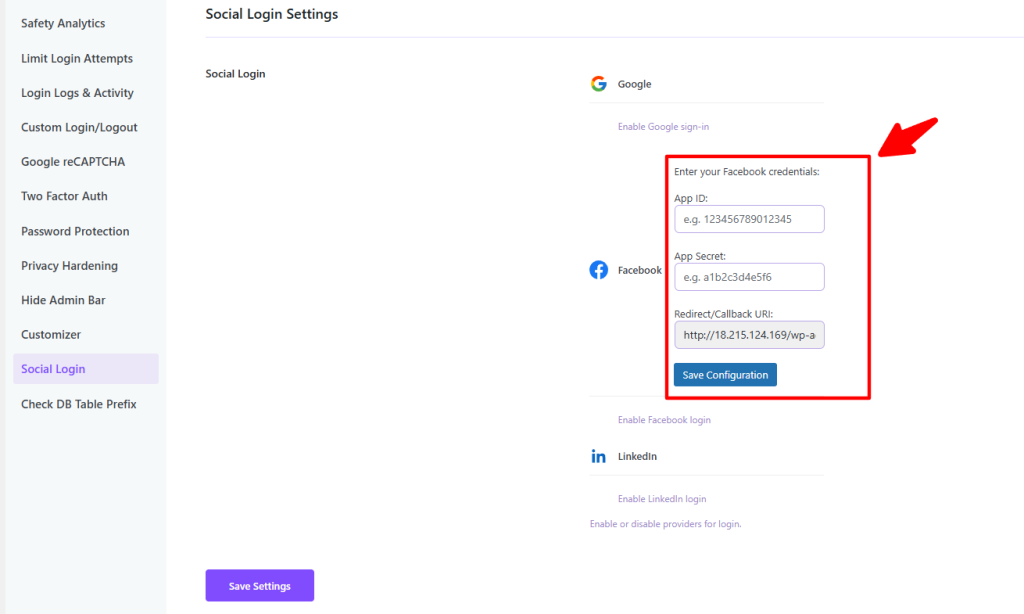
- Go to Admin Safety Guard > Social Login
- Click the button beside the Facebook Logo
Enabling this option will open the following options, which you need to provide to activate the feature:
- App ID
- App Secret
- Redirect/ Callback URL
Provide Facebook Credentials
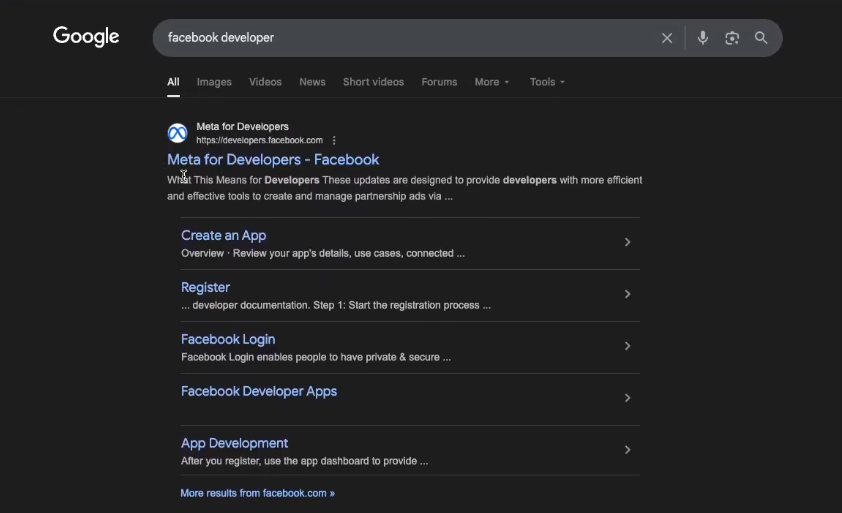
Go to Social technologies | Meta for Developers to collect the required Facebook credentials. Your actual Facebook account must be logged in during this process on your browser.
Note: You can also visit this link to get access: https://developers.facebook.com/apps
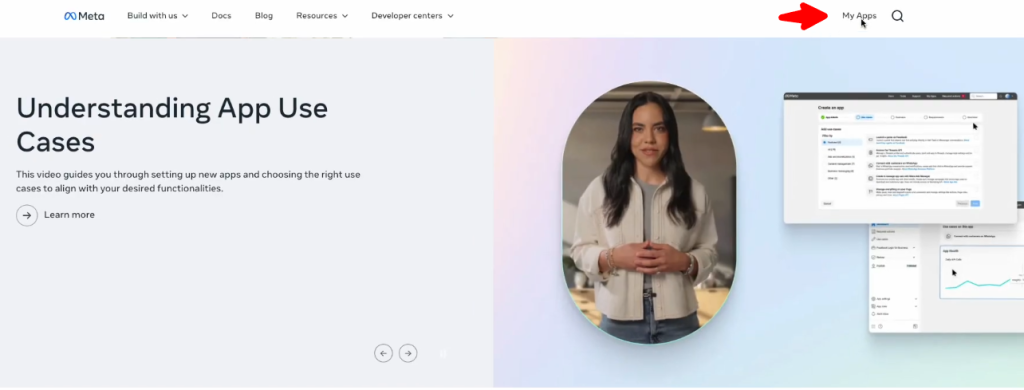
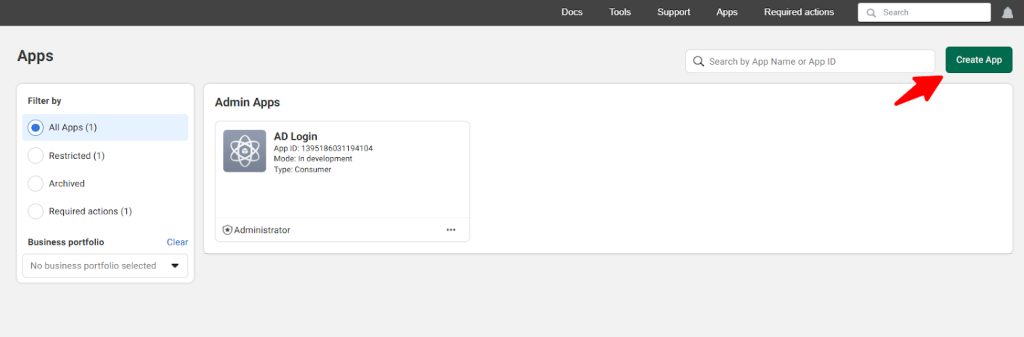
- Now click the My Apps button located in the top right corner.
- Now click the Crete App button
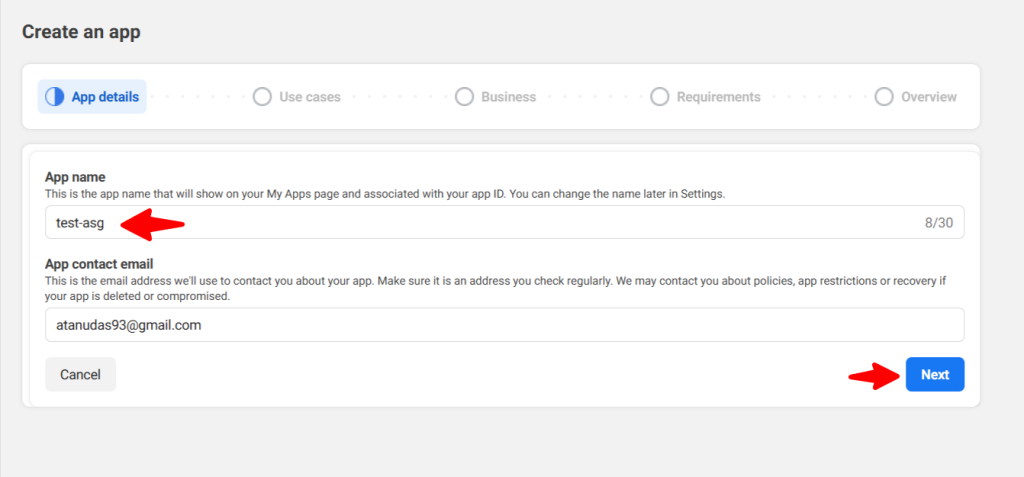
- Then you have to provide the App Name. We’ve given a name: “test-asg”
- Keep the app contact email as it is.
- Now, click Next to proceed.
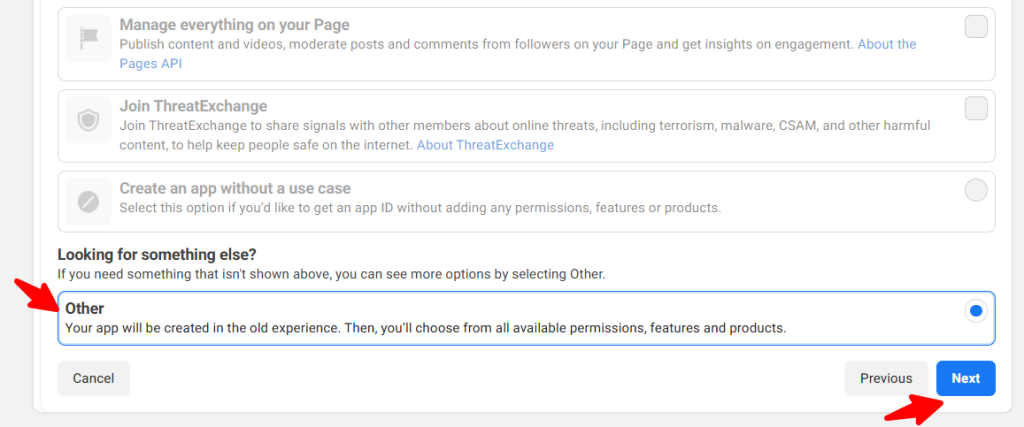
- Now scroll down a bit and click on Others and then click Next.
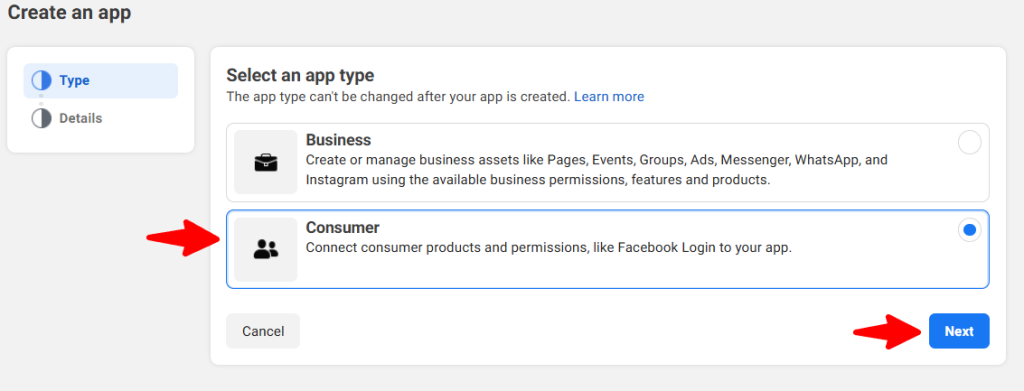
- Then select Consumer and click Next.
- Since App name and other details are already available, click Create App.
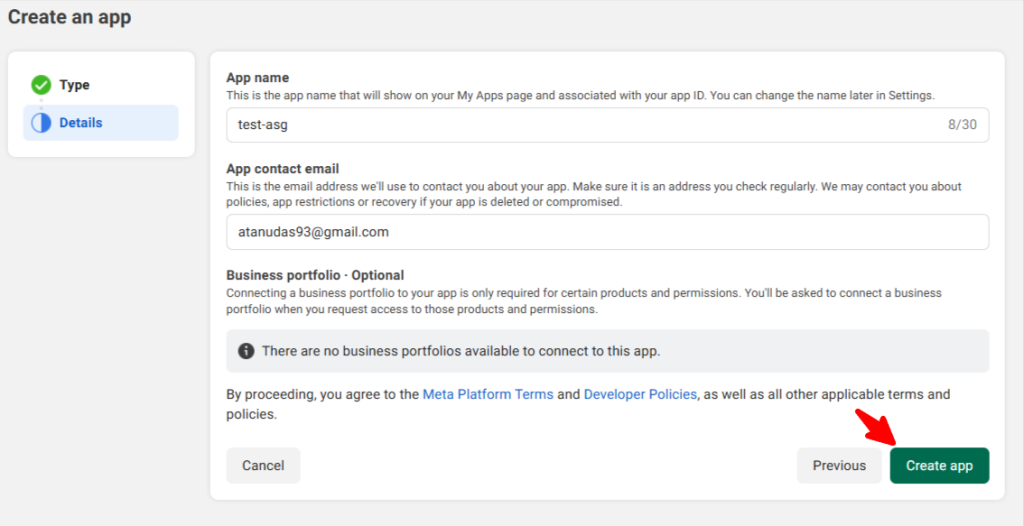
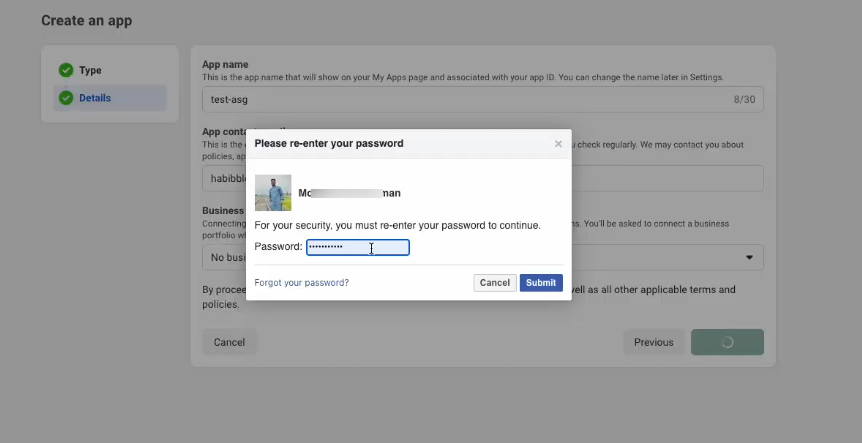
- The system may ask you for your password. Providing the password will create the app automatically.
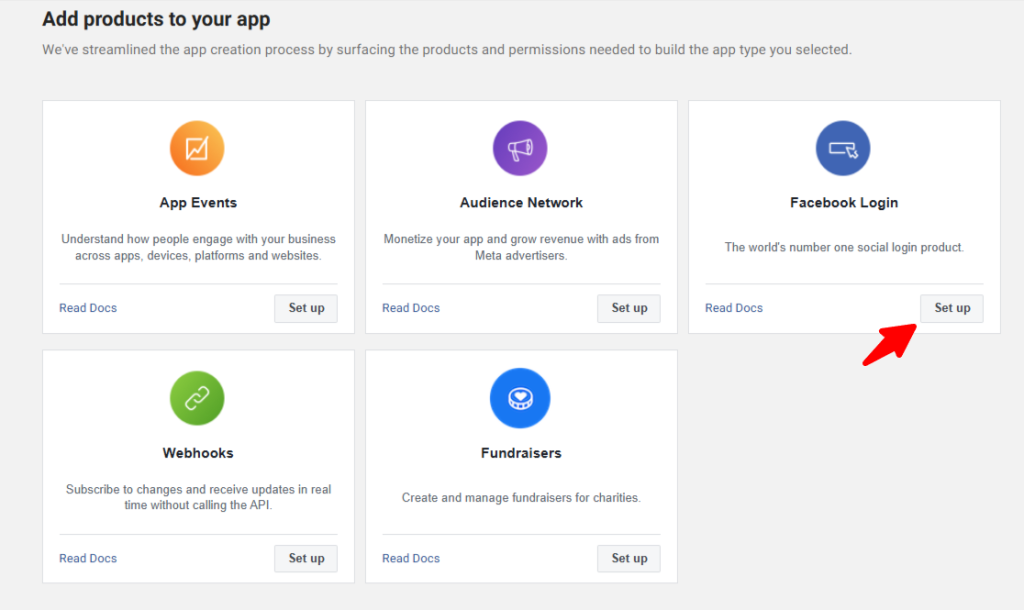
- Now click on Setup to proceed with the app creation process.
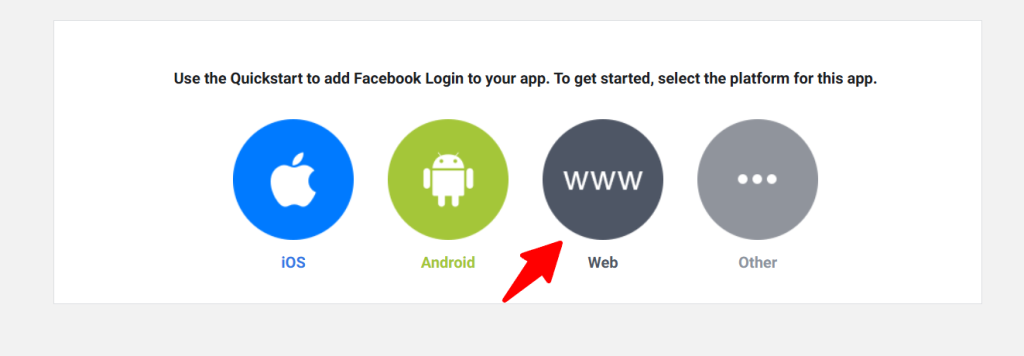
- Then click on Web form the available options.
Now provide your site URL just below the Site URL place.
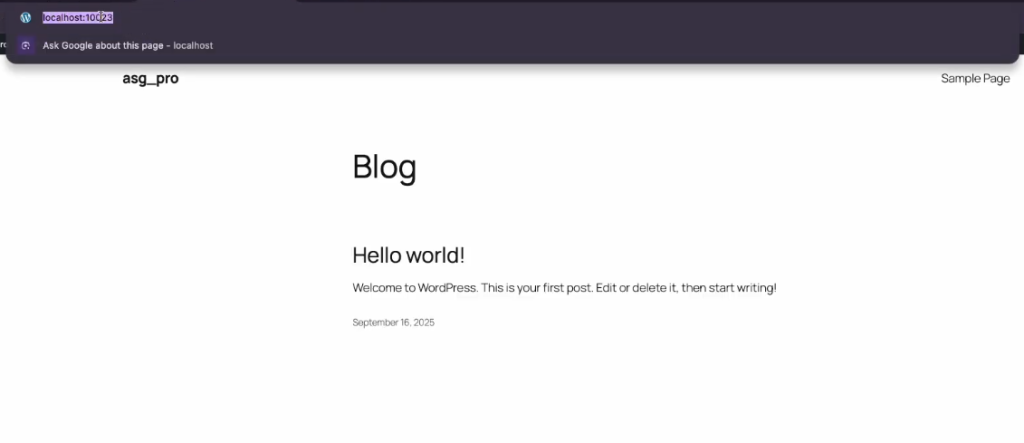
- We went back to our test website and took the website URL from the browser.
- Then, get back to App creation process and provide the URL
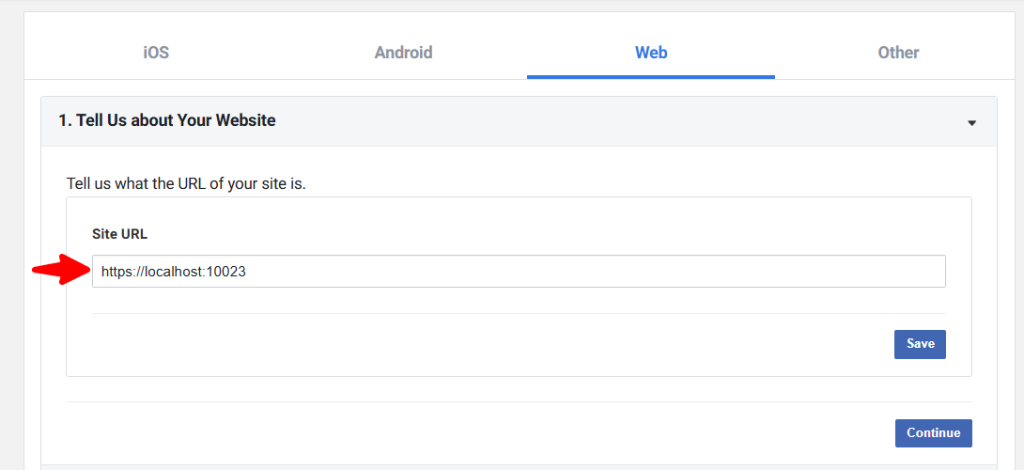
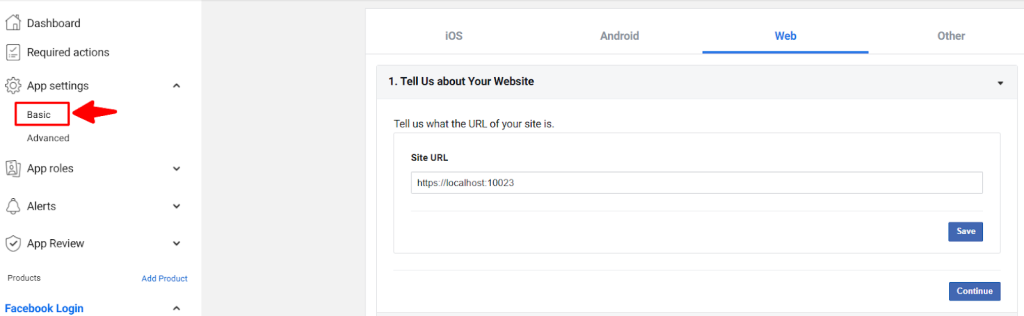
Now, click on App Settings > Basic.
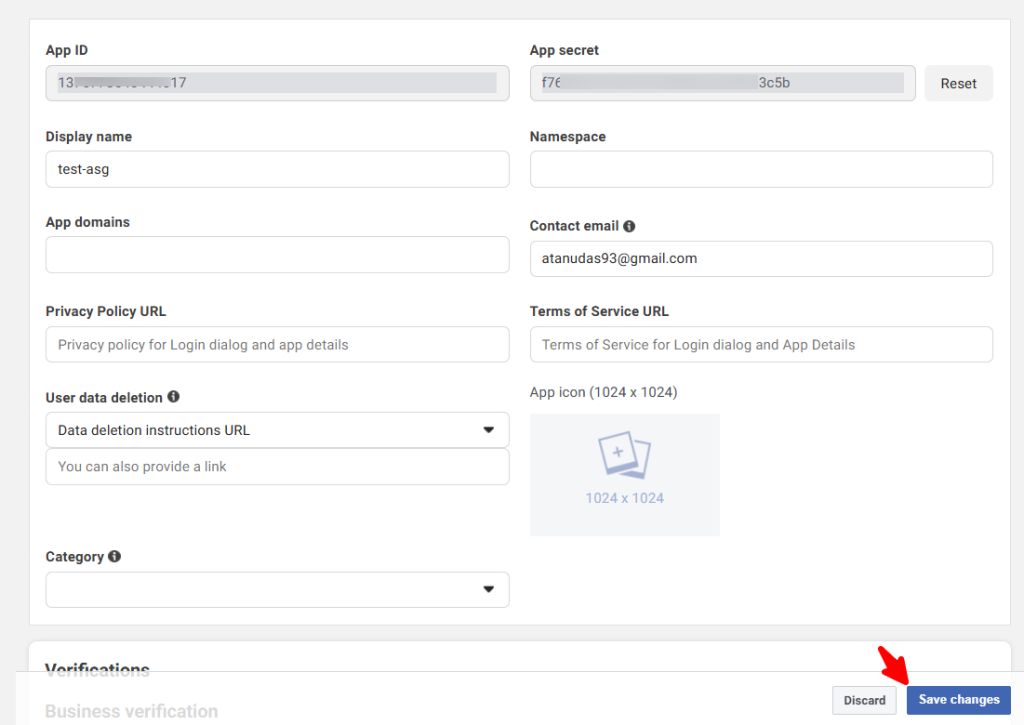
- Copy the App ID and App secret. You can provide other information in this page according to your business type and rqeuirements. For example: Business address, Sub domain, Terms of service URL, Logo etc.
- Now go back to your website Admin Safety Guard > Social Login and provide the App ID, and App Secret. Then click the Save Configuration button.
- Since the Facebook App configuration is complete, click on Save Settigns.
- You will now see the Login with Facebook available at the login area if you logout from your website and go to the login URL.
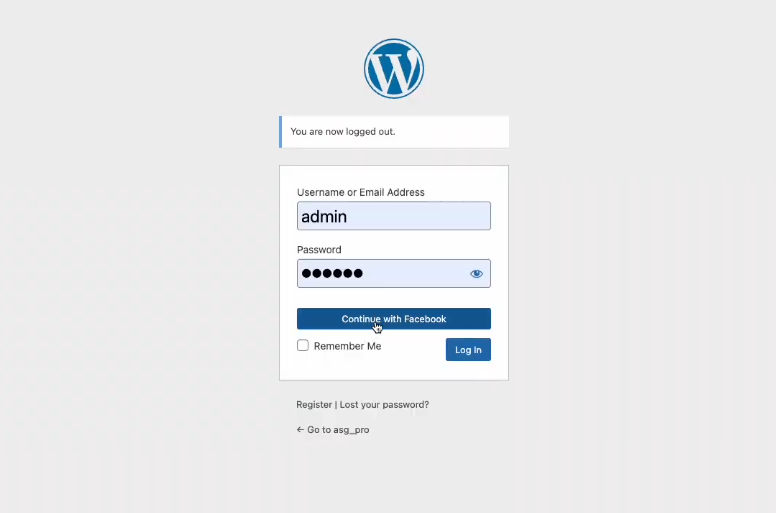
- By clicking on Continue with Facebook button, you will be redirected to login to your website using Facebook. Then click the button that says – Contonie with (Your username)
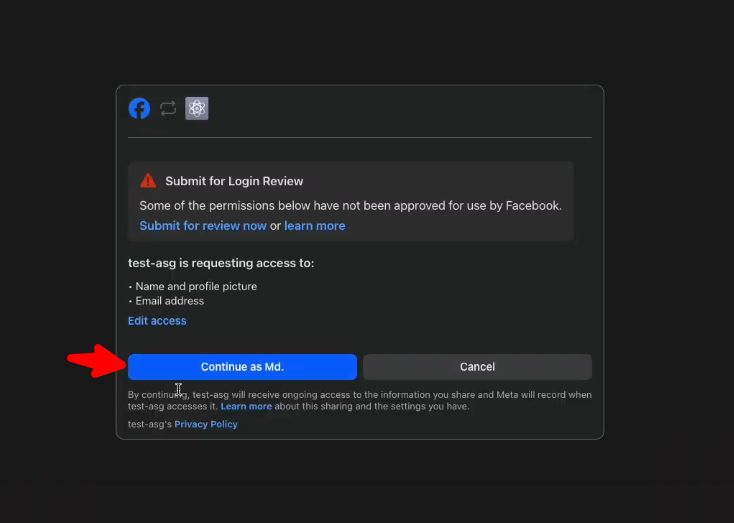
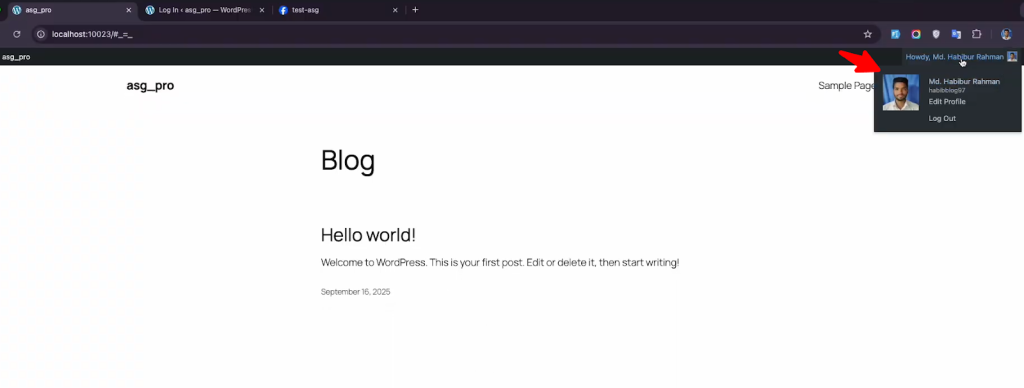
- As you can see you have been now logged in through your facebook credentials.